How to Delete or Hide Comments on Your Facebook Business Page

How to delete or hide comments on your Facebook business Page: hide vs delete, steps for computer and app, keyword filters, ad comments and banning.
A post goes up on your Facebook Page and, a few hours later, the comments are a mix of genuine questions, one angry customer, two spam links and someone picking a fight with another commenter. You want the junk gone, but you don't want to look like you're silencing people.
Facebook gives Page managers two main tools for this: hiding and deleting. This guide explains the difference, gives the steps for a computer and the Facebook app (as of October 2026), and covers automatic filters, comments on ads, and when to ban someone. Personal profiles get a short section at the end.
Hide vs delete: what each one does
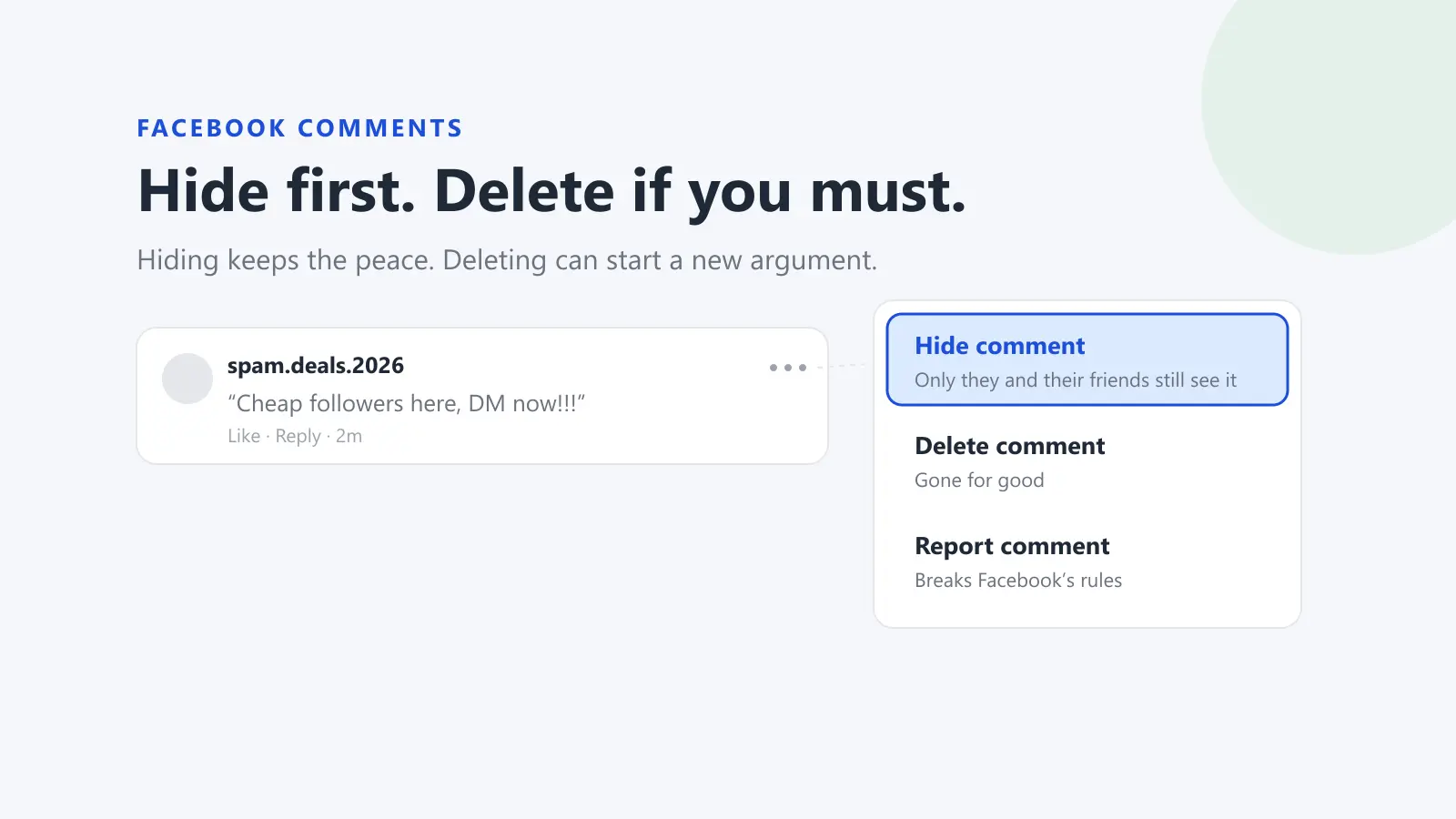
Hiding a comment keeps it visible to the person who wrote it and their friends, and hides it from everyone else. According to Facebook's Help Centre, replies to a hidden comment are hidden too. You can unhide it later.
Deleting a comment removes it from the post. Facebook's help pages don't describe any way to bring it back, so treat deleting as permanent.
That difference is why hiding is usually the better first move for a business:
- It causes less fuss. Because the author and their friends can still see a hidden comment, the person who wrote it often doesn't notice anything has changed. A deleted comment simply disappears, which can prompt a new, angrier comment about being censored. Facebook itself says hiding "can help prevent more unwanted comments".
- It's reversible. If you hide something by mistake, or a staff member was too quick, you can unhide it.
- It keeps a record. Hidden comments stay on the post, so you can look back at what was said if a situation escalates.
Delete when the comment should not exist anywhere: someone's personal details, a scam link, threats, hate speech, or content that breaks Facebook's Community Standards. For anything that breaks the rules, report it as well (the steps are below).
Who can do it. You need Facebook access to the Page to hide or delete comments on Facebook. Facebook's Help Centre says people with only task access to a Page can't hide, sort or delete comments on Page posts from Facebook itself.
How to hide a comment on your Facebook Page
These steps are from Facebook's Help Centre, checked in October 2026. Facebook changes its menus often, so the labels may differ slightly on your screen.
On a computer
- Switch into your Page, then go to the post with the comment you want to hide.
- Next to the comment, hover over Options, then click Hide comment.
In the Facebook app
- From your Page, go to the post with the comment.
- Tap and hold the comment, then tap Hide.
How to see hidden comments on Facebook and unhide them
On a computer, or in the Facebook app for Android, Facebook groups hidden comments under a filter called Hidden by this Page. Facebook's Help Centre says this view isn't available elsewhere yet.
- From your Page, go to the post.
- At the top of the comments, click Most relevant, then select Hidden by this Page.
- Below the comment, click Unhide (or open Options and choose Unhide comment). In the Android app, tap and hold the comment, then tap Unhide comment.
This view also shows comments hidden automatically by the profanity filter and by any words you've blocked, so it's worth checking now and then for genuine comments caught by mistake. Sorting hidden comments needs comment ranking switched on, which Facebook says is on for Pages by default.
In the iPhone app, a hidden comment appears as This comment has been hidden. Tap and hold it, then select Unhide.
How to delete a comment on your Facebook Page
On a computer
- Go to the post with the comment you want to delete.
- Click Options to the right of the comment.
- Select Delete.
In the Facebook app
- Go to the post with the comment.
- Tap and hold the comment, then select Delete.
- Tap Delete again to confirm.
If the comment breaks Facebook's rules, report it rather than just removing it. On a computer, Facebook's help page says to click Options next to the comment and select Report comment. Reporting a hidden comment works the same way.
Stop the worst comments before you see them
Hiding and deleting one comment at a time works for a quiet Page. For anything busier, Facebook's Page settings can hide a lot of it automatically. As of October 2026, Facebook's Help Centre describes these steps on a computer:
- Click your profile photo at the top right, click See all profiles, then select your Page.
- Click your Page photo at the top right, then Settings and privacy, then Settings.
- In the left menu, click Followers and public content.
From there, you can use the following tools.
Keyword filter
Click Hide comments containing certain words from your Page and add words, phrases or emoji separated by commas, then save. Facebook says you can block up to 1,000 keywords, and it automatically hides common variations (misspellings, plurals, abbreviations, and words written with numbers or symbols) without counting them towards the limit. If you manage several Pages, you can copy a keyword list from one Page to another or upload a CSV.
Good candidates are common scam phrases, slurs and words used in abuse aimed at your staff. Review the list now and then, because an over-eager filter can hide genuine complaints. Two limits worth knowing: the filter only applies to content your Page created, not to comments on other people's posts, and the person who wrote a hidden comment and their friends can still see it.
Profanity filter
Turn on the toggle for Hide posts and comments with profanity. Facebook decides what counts as profanity based on the words and phrases most commonly reported as offensive by the community, so you don't get to set the list. Comments it hides stay visible to their authors and their friends.
The same section also has Country restrictions and Age restrictions, according to Meta's Business Help Centre.
Moderation Assist and the comments manager
Facebook's professional dashboard (from your Page, click Manage to the right of the Page name) includes two more tools. Meta's Business Help Centre describes them this way:
- Moderation Assist lets you assign actions for Facebook to perform automatically. You can filter profanity, block keywords and apply rules for comments on your content.
- Comments manager shows all comments in one place, with a search, and lets you like, hide, delete, reply to or report them.
If your Page gets a steady stream of comments, the comments manager is faster than opening each post.
Comments on ads and boosted posts
Comments on your ads don't always show up where you expect. Meta's help for Ads Manager says you can open them like this (as of October 2026):
- Open Ads Manager and click the Ads tab.
- Find your ad and click Edit below its name.
- In the left column, select the three dots next to the ad name, then More options.
- Select Manage Facebook comments (or Manage Instagram comments, if the ad runs on Instagram with an Instagram profile).
A pop-up shows the ad with its comments, where you can reply, like, hide or report them. Meta says the same tools are available through your Facebook notifications. Notice that Meta's ad comment tools list hiding and reporting, not deleting.
Your keyword and profanity filters help here too. Meta says those filters are set at the Page level and extend to ads from the Page.
When to reply instead, and when to ban
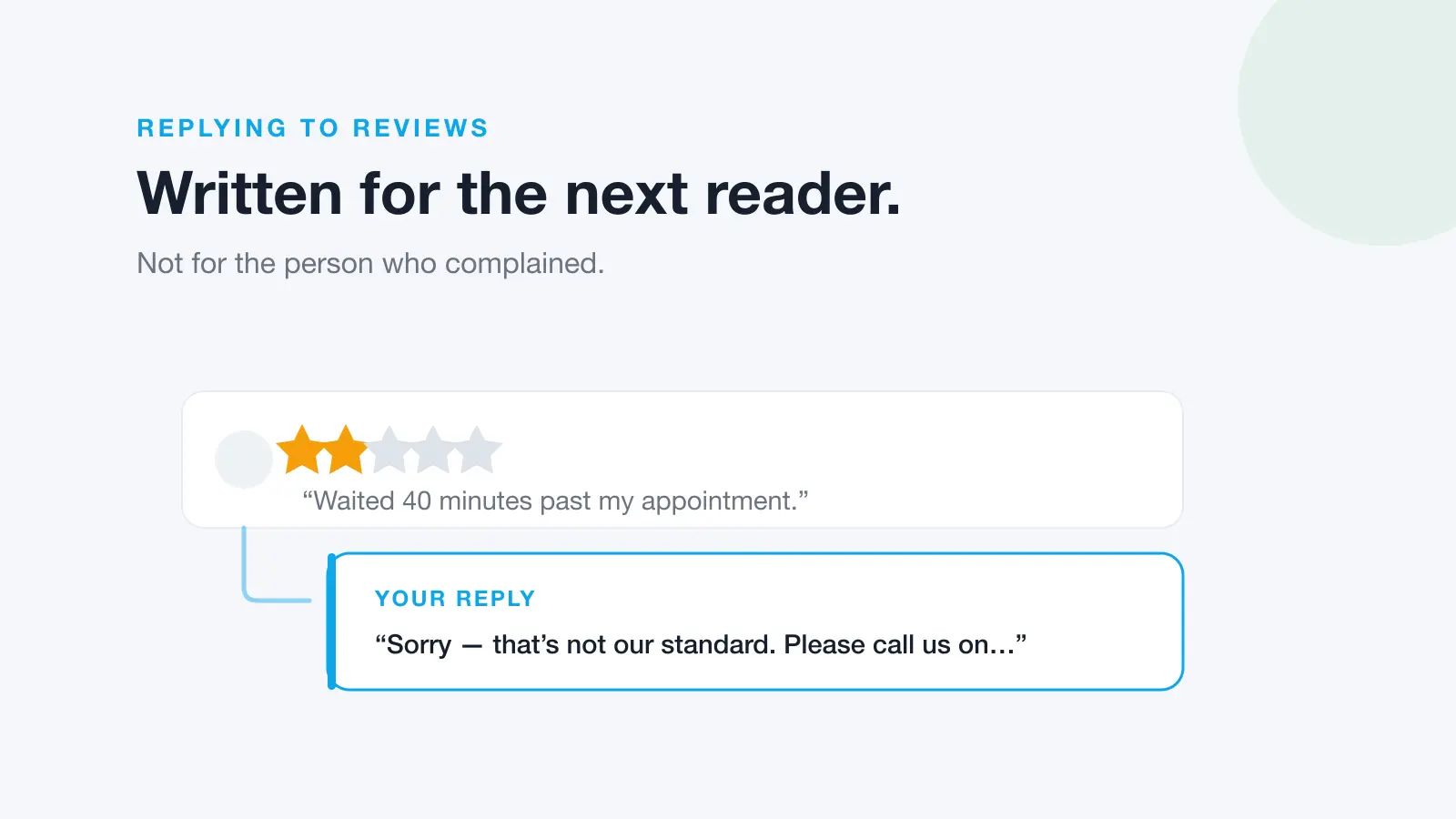
Reply to genuine complaints. A customer who is unhappy and says so politely isn't a moderation problem. Hiding their comment while everyone else's stays up looks like you're burying criticism, and the customer can still see it, so they know they've been ignored. Reply in public, acknowledge the issue, and invite them to message you with the details. Our guide on how to respond to negative reviews covers the wording, and most of it works for comments too.
Hide spam, abuse and pile-ons. Scam links, slurs, personal attacks on staff, and off-topic fights between commenters can be hidden without a reply.
Delete what shouldn't exist. Personal information, threats and illegal content. Report it as well.
Block or ban repeat offenders. If the same person keeps coming back, block them from your Page. Facebook's Help Centre says a profile or Page blocked from your Page can no longer see what you post there, tag your Page, invite it to events or groups, start a conversation with it, or find it in search, and is removed as a follower if it was following you. The block applies only to your Page.
To block someone on a computer, go to Settings and privacy, then Settings, then Blocking in your Page's settings, or hover over the commenter's photo on a post to find the block option. Meta's Business Help Centre says that when you block someone you can also choose to ban them and new profiles they may create, though Meta notes it may not detect every new account.
For a written set of rules your team can follow on what to hide, delete or escalate, a short moderation policy saves a lot of second-guessing.
Managing comments across several Pages
If you run a Page for each location, or manage Pages for clients, the hard part isn't hiding a comment. It's noticing it. Comments land under posts from weeks ago, on Pages nobody has opened since Monday. Set the keyword and profanity filters on every Page, not just the main one, and agree who checks comments and when.
This is the gap Dinopix's Facebook comment management is built for. Comments from every Page you connect, including comments on your ads and boosted posts, land in one list with the unreplied ones first. Your team can reply, or hide and unhide spam and abuse, without logging in to each Page. Dinopix doesn't delete customers' comments: deleting is still done in Facebook or Meta Business Suite, using the steps above. Comments sit in the same inbox as your reviews, so a Page's Facebook reviews and comments are handled together. If you're not sure how those two differ, see Facebook reviews vs post comments.
Meta Business Suite
Meta's help pages say people with task access to a Page can use Meta Business Suite for some moderation jobs, such as blocking keywords and blocking people, and that comment moderation for the Inbox can be managed there.
Personal profiles: hiding and deleting comments on your own posts
If you landed here about your personal Facebook profile, the steps are almost the same. As of October 2026, Facebook's Help Centre says:
To hide a comment on your post: go to the post, hover over Options next to the comment and click Hide comment (in the app, tap and hold the comment, then tap Hide or Hide comment). The comment stays visible to the person who wrote it and their friends, and is hidden from everyone else you shared the post with.
To delete a comment on your post: click Options next to the comment and select Delete (in the app, tap and hold it, select Delete, then confirm).
To delete a comment you wrote on someone else's post: click Options next to it, select Delete, then confirm.
To limit who can comment on your public posts: click your profile picture, then Settings and privacy, Settings, and Followers and public content. Under Who can comment on your public posts?, choose Public, Friends or Friends of friends. You can also change this for a single public post.
Frequently Asked Questions
Does someone know when you hide their Facebook comment?
Facebook's Help Centre says a hidden comment stays visible to the person who wrote it and their friends, and is hidden from everyone else. Because it still looks normal to them, many people won't notice. That's a big part of why hiding is usually a calmer option than deleting.
What's the difference between hiding and deleting a comment on Facebook?
Hiding keeps the comment visible only to its author and their friends, and you can unhide it later. Deleting removes it from the post. Hide spam and abuse first, and keep deleting for content that shouldn't exist at all, such as personal details or threats.
How do you see hidden comments on a Facebook Page?
On a computer or the Android app, open the post, click Most relevant at the top of the comments and choose Hidden by this Page. That list also includes comments hidden by your profanity and keyword filters. On iPhone, hidden comments show as "This comment has been hidden".
Can you delete comments on Facebook ads?
As of October 2026, Meta's Ads Manager tools let you hide, report, like or reply to comments on your ads; deleting isn't among the listed options. Your Page's keyword and profanity filters also apply to ads from the Page. To stop a repeat offender, block them from your Page.
Why can't you hide or delete comments on your business Page?
Check your access. Facebook's Help Centre says you need Facebook access to the Page to hide, sort or delete comments on Facebook, and people with task access can't. Ask a Page admin to change your access, or use Meta Business Suite for the tasks your access allows.
Can you turn off comments on a Facebook Page post?
Facebook's Help Centre describes "who can comment" controls for public posts on personal profiles. Meta's moderation help for Pages focuses on other tools: hiding and deleting, the keyword and profanity filters, country and age restrictions, and blocking. Check your Page's settings in the week you need them, because Meta changes these options often.
Keep every Page's comments under control
If you manage more than one Facebook Page, or Facebook and Instagram together, Dinopix puts every comment in one list so nothing sits unanswered or unhidden for days. Reply, hide or hand a comment to a teammate from one place, and keep deleting for the rare comment that needs it.
Sources
- Facebook Help Centre, Hide a comment from a post on your Facebook Page
- Facebook Help Centre, Delete a comment from a post on your Facebook Page
- Facebook Help Centre, Block certain words from appearing in comments on your Facebook Page
- Facebook Help Centre, Turn the profanity filter on and off for your Facebook Page
- Facebook Help Centre, Control what visitors can post on your Facebook Page
- Facebook Help Centre, Block or unblock profiles from your Facebook Page
- Facebook Help Centre, Hide or delete a comment from a post on your Facebook profile
- Facebook Help Centre, Delete or edit my comment below a Facebook post
- Facebook Help Centre, Choose who can comment on your public Facebook posts
- Meta Business Help Centre, Manage comment moderation for Facebook Pages
- Meta Business Help Centre, Manage comments on your ads in Meta Ads Manager
- Meta Business Help Centre, About professional dashboard on Facebook
- Meta Business Help Centre, How to block someone from your Facebook Page