How to Reply to Google Reviews

How to reply to a Google review, why replies take time to appear, how to edit or delete one, and the rules that apply to every response.
Replying to a Google review takes about thirty seconds once you know where the button is. The mechanics trip people up more than the writing does: replies need a verified profile, they don't always appear immediately, and they're published under your business name rather than yours personally.
This covers the mechanics, how to reply, what happens after you hit send, and how to fix a reply you regret. For what to actually write, there are companion guides linked below.
How to reply to a Google review
- Sign in to the Google account that manages the Business Profile.
- Go to business.google.com, or simply search Google for your business name while signed in.
- Select Read reviews, or open the Reviews section of the management panel.
- Find the review and select Reply next to it.
- Type your response in the box and select Reply to publish it.
The same flow works on the Google Maps app: open your business profile while signed in as the owner, go to Reviews, and reply from there.
Google review reply templates
20 replies you can copy and edit, from a 5-star thank-you to a fair answer to a 1-star complaint. Free, by email.
We'll email the templates from support@dinopix.com.au, then about one email a month with new review guides and Dinopix product news. Unsubscribe in one click from any email. Privacy policy
What happens after you reply
A few things are worth knowing, because they surprise people.
Google checks your reply first. Replies are reviewed against Google's content policies before publication. Google states this usually takes up to 10 minutes, but that a reply can occasionally take up to 30 days. If your reply hasn't appeared after a few minutes, it's in that queue rather than lost.
Your personal name isn't shown. The reply is published under the customer's review and appears as coming from the business, not from your personal Google account. Signing off with your first name in the text is a good idea. Otherwise the reply reads as institutional.
The reviewer gets notified. Google notifies the customer that you've responded, and they can then edit their original review. That's the whole opportunity: a good reply to a bad review sometimes turns a 2 into a 4.
Editing or deleting a reply
Replies aren't permanent. Open the review, select the reply, and use Edit to change it or Delete to remove it entirely. An edited reply goes back through the same content check before the new version appears.
If you've posted something in frustration, deleting it is better than leaving it up while you decide. A missing reply is invisible; a defensive one is permanent evidence for every future prospect reading the thread.
The mechanics of a good reply
The full craft of review responses is covered in depth elsewhere. See how to respond to negative reviews for complaints, replying to positive reviews, and building a response strategy for doing it consistently across a team. To start from wording you can edit, use our review response templates.
The mechanical rules that apply to every reply, though, are short:
| Do | Don't |
|---|---|
| Reply to every review, positive and negative | Reply only when something goes wrong |
| Respond within a day or two | Answer a three-month-old complaint as though it's news |
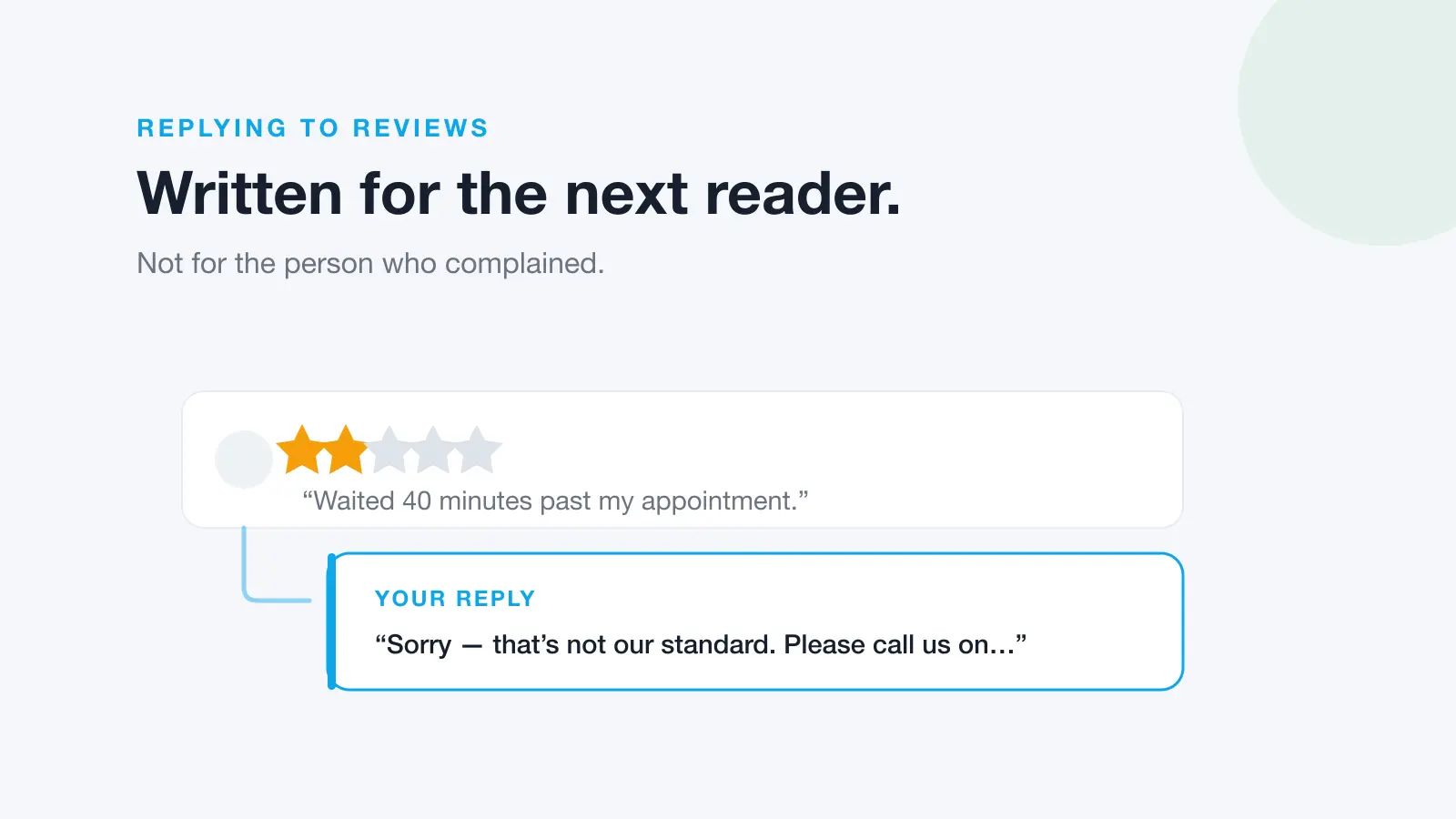
| Write for the next reader, not the reviewer | Argue the specifics of who was right |
| Take it offline: give a contact route | Debate a refund publicly, line by line |
| Sign off with a real first name | Paste the same template under every review |
| Keep it short, two or three sentences | Publish personal details about the customer |
Replying at volume
One location with a handful of reviews a month is manageable by hand. The difficulty scales badly: several locations, reviews arriving on Google and Facebook, and a response-time target that slips the moment you're busy.
The practical fix is to stop checking and start being notified, one inbox, an owner for each review, and a draft ready so replying is an approval rather than a writing task. Our guide to AI review responses covers where a person still needs to check. That's what Dinopix Reviews does: every review from Google and Facebook in one place, AI-drafted replies you edit and post, and sentiment analysis so the ones that need a human first surface first.
Frequently Asked Questions
How do I reply to a Google review?
Sign in to the Google account that manages your Business Profile, search your business name on Google or go to business.google.com, select Read reviews, then choose Reply next to the review. Type your response and select Reply to publish. Your profile must be verified before the reply option becomes available.
Why is my reply to a Google review not showing?
Replies are checked against Google's content policies before they appear. Google states this usually takes up to 10 minutes but can occasionally take up to 30 days. If a reply never appears, it may have breached a policy, commonly by including the customer's personal details, or by containing promotional content or a link.
Can I edit or delete a reply to a Google review?
Yes. Open the review in your Business Profile, select your reply, and choose Edit or Delete. An edited reply goes through the same content check before the updated version appears publicly. Deleting a reply removes it entirely and leaves the original review without a response.
Does the customer know when I reply?
Yes. Google notifies the reviewer when a business responds, and they can edit their original review afterwards. That notification is the reason a considered reply to a negative review is worth the effort: it's one of the few moments where an unhappy customer is actively looking at your response.
Does my personal name show on the reply?
No. The reply appears as coming from the business rather than from your personal Google account, so your own name isn't displayed. Because of that, signing off with your first name inside the text is worth doing. It makes the response read as a person rather than a corporate statement.
Should I reply to positive reviews too?
Yes. Replying only to complaints makes your profile read as defensive, and it wastes the easiest goodwill available. Short, specific thanks that references what the customer actually mentioned takes seconds and shows prospects that someone is paying attention. Avoid pasting an identical template under every five-star review. It's obvious and it undercuts the effect.
Sources
This guide draws on the primary sources below. Google's interface and policies change. Always check the current version.
Google review reply templates
20 replies you can copy and edit, from a 5-star thank-you to a fair answer to a 1-star complaint. Free, by email.
We'll email the templates from support@dinopix.com.au, then about one email a month with new review guides and Dinopix product news. Unsubscribe in one click from any email. Privacy policy