How to Turn Off Reviews on Facebook

Turn off Facebook reviews (now called recommendations) with steps checked in October 2026, why the app can't do it, and what turning them off hides.
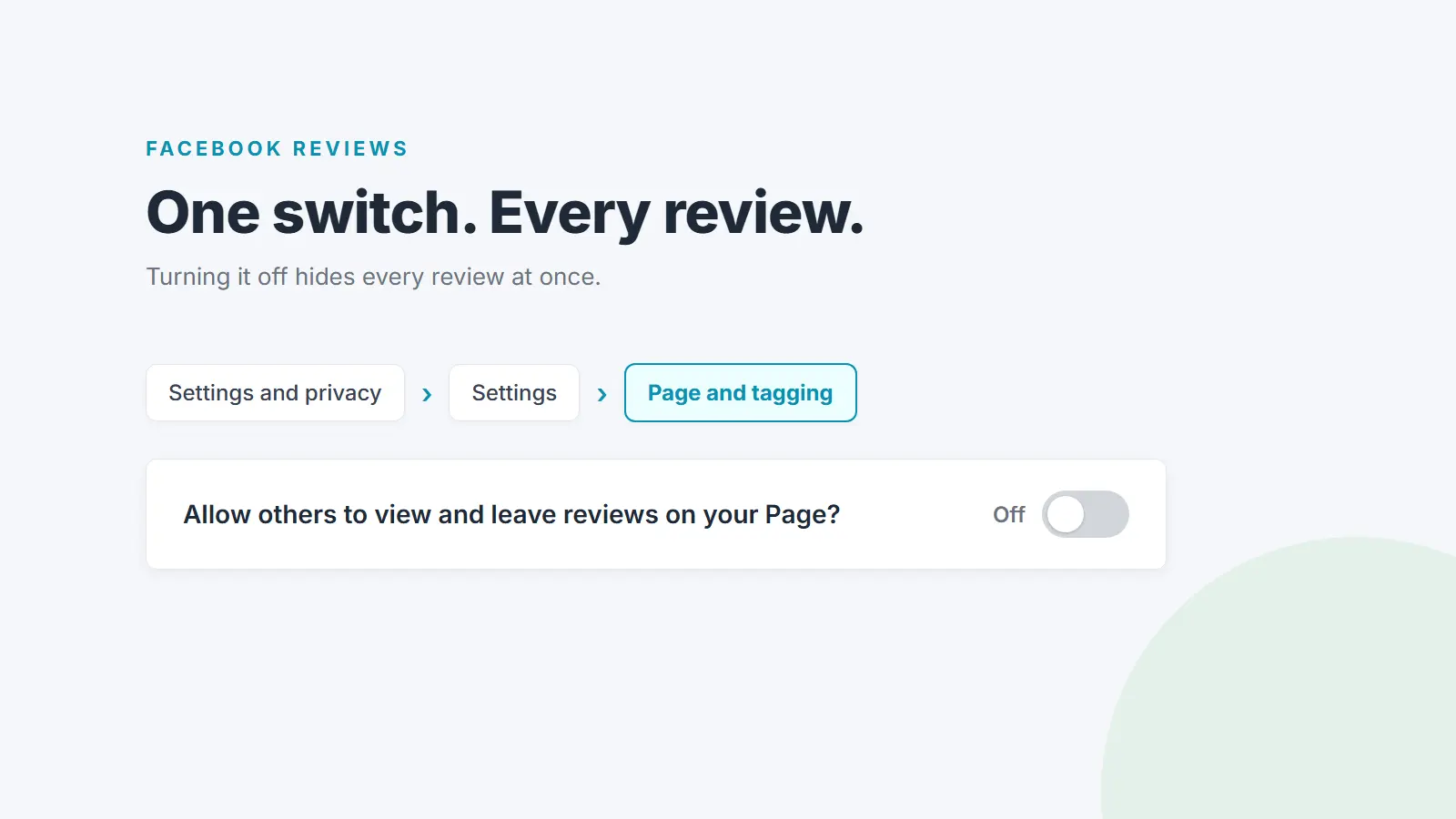
To turn off reviews on a Facebook business Page, switch into the Page on a computer, open Settings and privacy, then Settings, then Page and tagging, and switch off Allow others to view and leave reviews on your Page? It's all or nothing: every review is hidden, the good ones included, and your rating goes with them. Facebook now calls reviews recommendations. These steps match Meta's Help Centre as checked in October 2026.
How to turn off reviews on Facebook (computer)
Meta's Help Centre gives these steps for a computer. Use a web browser, not the Facebook app (more on that below).
- Log in to Facebook and click your profile photo at the top right.
- Click See all profiles, then select the Page you want to change. This switches you into the Page.
- Click the Page's profile photo at the top right.
- Click Settings and privacy, then Settings.
- Click Page and tagging. In the left-hand menu it sits in the Audience and visibility group.
- Under Viewing and sharing, switch off Allow others to view and leave reviews on your Page?
The setting belongs to one Page, so if you look after a Page for each location, repeat the steps on every Page you want to change.
What the toggle's help text says
The short text under the toggle is the clearest summary of what the setting does. When we viewed it in October 2026 it read: "Reviews are public, influence your rating and cannot be deleted. You can hide your rating and existing reviews from your Page and keep people from leaving new reviews at any time."
Meta's help article says much the same: "Turning Recommendations off will disable Recommendations and remove the rating and reviews from your Page." Put together, you can't delete individual reviews, and switching the setting off hides all of them at once.
Can you turn off Facebook reviews in the app?
Not according to Meta. The Android version of Meta's help page for this setting says "This feature isn't available on the Android app", and the iPhone version says the same about the iPhone app. Both send you to another device instead, and the only steps Meta publishes are the computer steps above.
If your phone is all you have on hand:
- Use a computer if you can. It's the only route Meta documents.
- Otherwise, try your phone's web browser rather than the app. Log in at facebook.com and request the desktop site from the browser's menu, then follow the computer steps. Meta doesn't document this, so if the menus don't match, wait until you're at a computer.
Why older instructions don't work
Search for this and you'll find three different routes. Only one of them matches Meta's current help.
- Settings, then Templates and Tabs, then switch off the Reviews tab. This is the route most older guides give. Templates and Tabs doesn't appear anywhere in Meta's current instructions for this setting, so if you can't find it, that's why.
- Edit Page, then Reviews, then Show Reviews. This one isn't in Meta's current help either.
- Settings and privacy, then Settings, then Page and tagging. This is the current route, and the one in the steps above.
Meta moves Page settings around from time to time, which is why we've dated these steps. If your screen doesn't match, Meta's help article for this setting (linked under Sources) is the first place to check.
What happens to your existing reviews
- They're hidden, not deleted. The on-screen text says you can "hide your rating and existing reviews from your Page". Nothing in this setting deletes a recommendation.
- Your rating goes too. Meta says turning recommendations off removes "the rating and reviews from your Page". The review count in your Page's Details section and the Reviews view disappear with it.
- Nobody can leave a new one while the setting is off.
- Switching back on should bring them back. Because the reviews are hidden rather than deleted, your earlier recommendations and rating should reappear when you turn the setting on again. Meta doesn't spell this out, so check your Page afterwards.
That last point matters if you're thinking of switching reviews off to get rid of one bad recommendation. It isn't a way to remove it: when reviews come back on, that recommendation should come back with the rest.
Why you can't see the option
You haven't switched into the Page
The setting is in your Page's settings, not your personal profile's. If you can't find Page and tagging, check the name and photo at the top right. If it's you rather than the business, click your profile photo, then See all profiles, select the Page and open Settings and privacy again.
Your access doesn't allow it
Meta's help for this setting doesn't say which level of Page access you need. If you can switch into the Page but can't find or change the setting, ask whoever set the Page up to check your access, or to make the change for you.
You're in the app
Meta says the setting isn't available in the Android or iPhone app. Use a computer, as above.
It's already off
If your Page shows no review count in its Details section and has no Reviews view, recommendations are probably already switched off. Open Page and tagging to check the toggle.
Should you turn Facebook reviews off?
There are good reasons to. A Page that nobody can keep an eye on, a Page for something people don't buy from you, or a business that has closed may be better off without recommendations. If that's your situation, switch them off and move on.
For most businesses that sell to the public, though, it costs more than it saves:
- You lose your social proof. Every positive recommendation from a happy customer is hidden along with the one you're unhappy about.
- You may be harder to find. Meta says recommendations "may make your Page easier to find in Facebook search".
- Complaints move somewhere else. Someone who can't leave a recommendation can still comment under your posts and ads, or review you on Google. A complaint in your comments has no structure and is easier to miss. Our guide to Facebook reviews vs post comments covers how the two differ.
One rule: make this decision about your Page, not about a single review. Don't switch reviews off because one bad recommendation arrived, and don't treat the setting as a way to control which reviews customers get to see. Customers should see a fair picture of what people think of you. That's the same principle behind the rules on review gating.
What to do instead
Report recommendations that break the rules
If a recommendation is spam, abusive, shares someone's personal details or has nothing to do with your business, report it. Meta's steps on a computer are:
- On your Page, click Reviews under Details, below the cover photo.
- Click See all next to Recent reviews.
- Click Options at the top right of the recommendation.
- Select Report post.
- Follow the on-screen instructions.
Meta says it will "review your report and may remove recommendations that don't follow our standards". Two limits: "Recommendations that only include a star rating can't be reported", and an honest bad review of a real experience usually doesn't break any rule, so it's likely to stay.
Reply in public as your Page
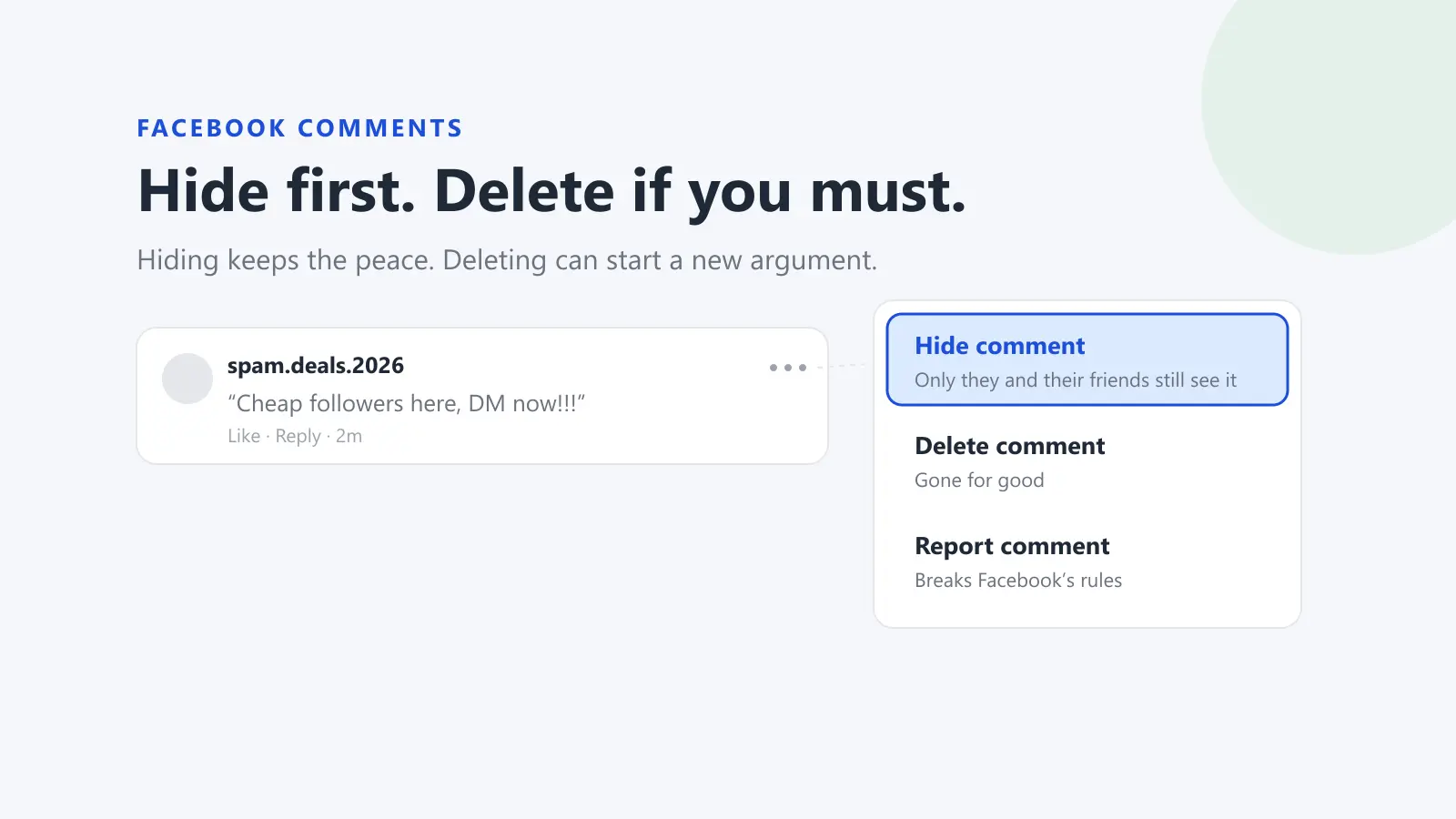
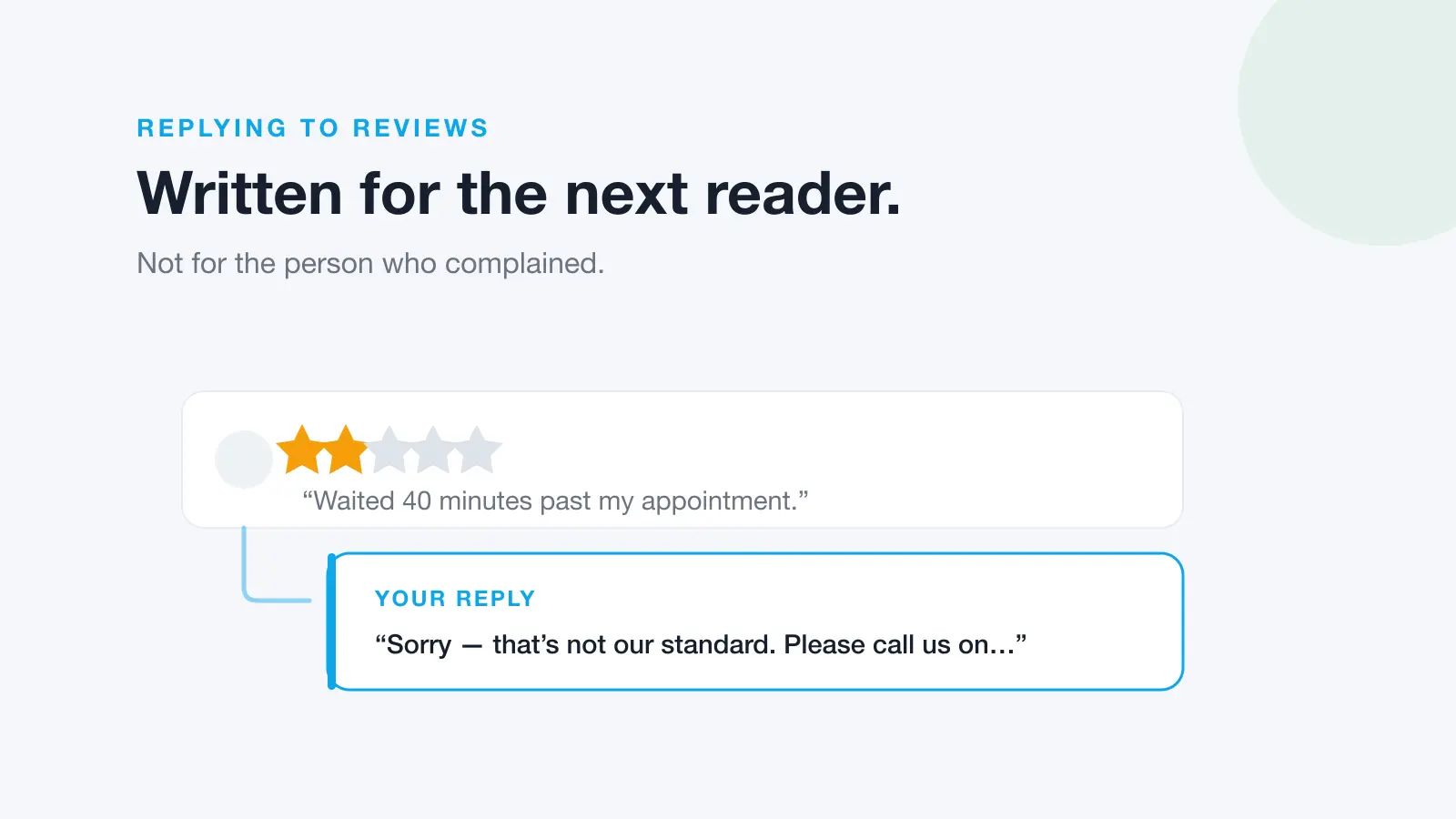
Reply by commenting on the recommendation while you're switched into your Page, so the reply comes from the business and not your personal profile. A calm, specific reply that owns what's fair and offers a way to sort it out reads well to every future customer. Our guide on how to respond to negative reviews has a structure and worked examples, and the beginner's guide to managing Facebook Page reviews covers replying, reporting and finding your reviews step by step.
Keep watch so nothing sits unseen
The recommendation that does the damage is usually the one nobody noticed for a fortnight. Dinopix shows Facebook recommendations in the same inbox as your Facebook post comments and Google reviews, so a new one doesn't sit unseen on a Page nobody opened. Replies to Facebook comments post to Facebook as your Page, straight from Dinopix. Replies to recommendations are made on Facebook itself, using the steps above. Dinopix can't remove, hide or turn off reviews; nobody outside Facebook can. The help centre explains how replying works on each platform.
How to turn Facebook reviews back on
Follow the same steps and switch Allow others to view and leave reviews on your Page? back on: switch into the Page, click its profile photo, then Settings and privacy, Settings and Page and tagging. Your earlier recommendations and rating should reappear on your Page.
If you've never touched the setting, it may already be on. Meta says: "If your Page previously had reviews, Recommendations have been automatically turned on for your Page."
A rating may not show straight away if your Page is new to reviews. Meta says a Page "may not have a rating if it hasn't received at least five reviews", and "Only recommendations that are shared publicly are included in a Page's overall rating."
Frequently Asked Questions
Can I turn off just one review on Facebook?
No. The setting is all or nothing: it hides every recommendation and your rating together. To deal with one review, report it if it breaks Facebook's rules, or reply to it publicly as your Page.
Does turning off reviews delete them?
No. The on-screen text says it hides your rating and existing reviews, and that reviews "cannot be deleted". If you switch the setting back on, your reviews and rating should reappear.
Can I turn off Facebook reviews in the app?
Meta's help says the feature isn't available in the Android app or the iPhone app. Use Facebook on a computer and follow the steps in Settings and privacy, Settings, Page and tagging.
Why can't I find Page and tagging?
Usually because you're still on your personal profile. Click your profile photo, then See all profiles, select the Page and open its settings. If you're in the Facebook app, switch to a computer. If you still can't see it, ask the person who set up the Page to check your access.
Keep your reviews on and see every new one the day it lands
Turning reviews off hides the problem along with your best feedback. Dinopix puts your Facebook recommendations next to your post comments and Google reviews in one inbox, so you see every new one and can answer it on Facebook while it still matters. See the plans, including the free one.
Sources
- Facebook Help Centre, Turn Recommendations on or off for your business Page (computer)
- Facebook Help Centre, Turn Recommendations on or off for your business Page (Android app version)
- Facebook Help Centre, Turn Recommendations on or off for your business Page (iPhone app version)
- Facebook Help Centre, Report a recommendation or review about a business Page on Facebook
- Facebook Help Centre, How Page review count and recommendation score are determined
- Facebook Page settings, Page and tagging, on-screen help text under the reviews toggle (viewed October 2026)