How to Delete, Hide or Turn Off Comments on Instagram (Business Accounts)

How to delete, hide or turn off comments on Instagram: steps for posts, reels and stories, Hidden Words filters, restricting and limiting accounts.
Your latest reel is doing well. Then the comments fill up with a crypto scam, a competitor's link, one customer with a genuine complaint and someone being rude to your staff. You want the junk gone, the complaint answered, and the whole thing to look calm to everyone else scrolling past.
Instagram gives you more moderation tools than most people realise: delete, hide, restrict, limit, block and turn off. This guide explains what each one does, gives the steps for the Instagram app and a computer (as of October 2026), and covers filters, reels, stories and handling comments as a team.
Delete, hide, restrict or turn off: what each one does
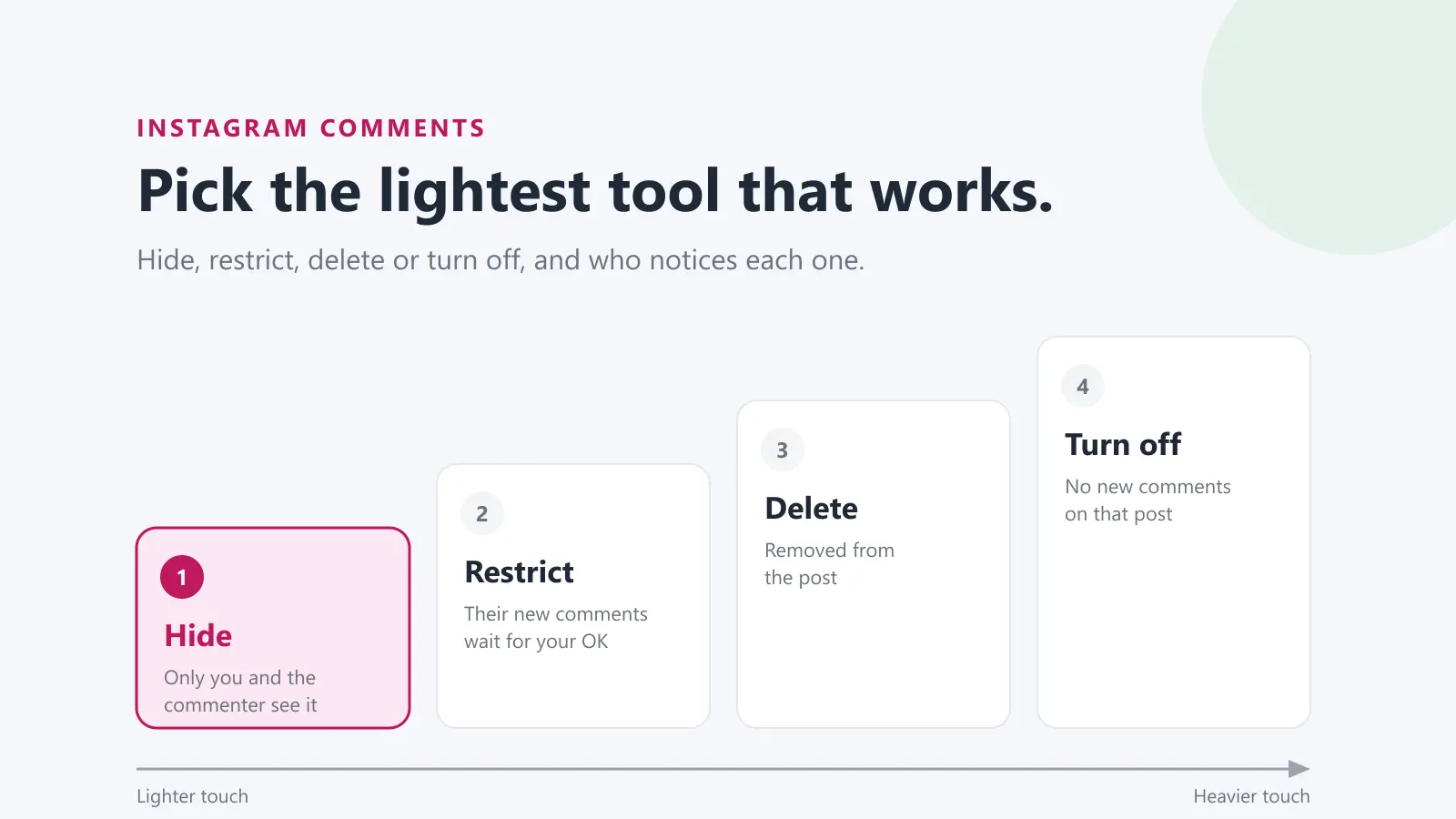
These are the main options for comments on your own posts and reels, as described in Instagram's Help Centre:
- Delete removes the comment. On your own posts you can delete anyone's comment; on other people's posts you can only delete comments you wrote.
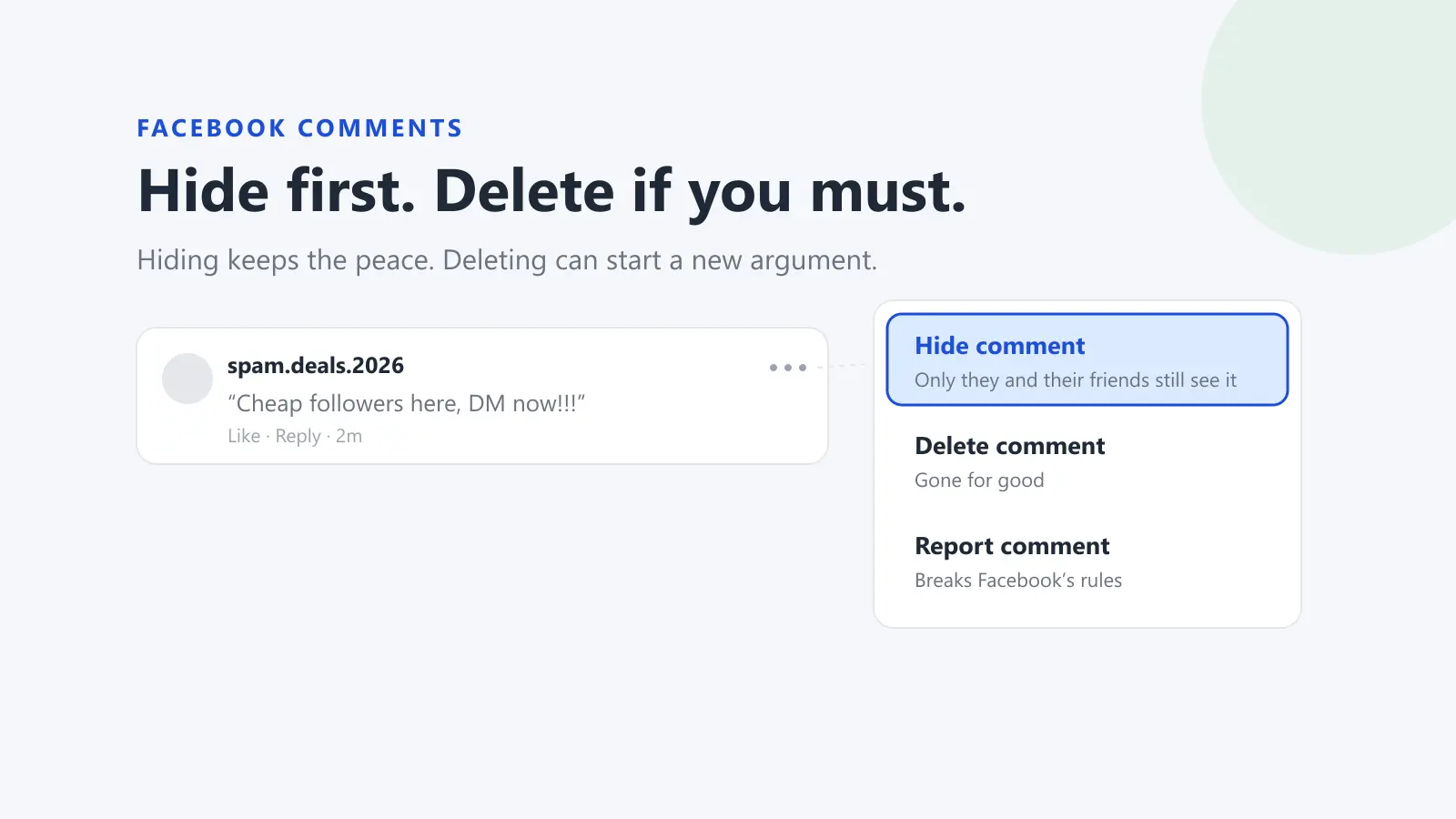
- Hide keeps the comment visible only to you and the person who wrote it. Instagram says the commenter won't be able to see that it's been hidden. You can unhide it later.
- Restrict applies to a person, not a single comment. Their new comments on your posts are only visible to them unless you approve them, and you stop getting notifications for their future comments.
- Limit interactions applies to groups of accounts for a set time, such as recent followers, and hides their new comments unless you approve them.
- Block from commenting stops one person's new comments from being visible to anyone but them. Instagram notes that blocking someone from commenting doesn't remove their previous comments.
- Turn off commenting applies to a whole post. Existing comments are hidden and nobody can add new ones until you turn commenting back on, at which point the earlier comments come back.
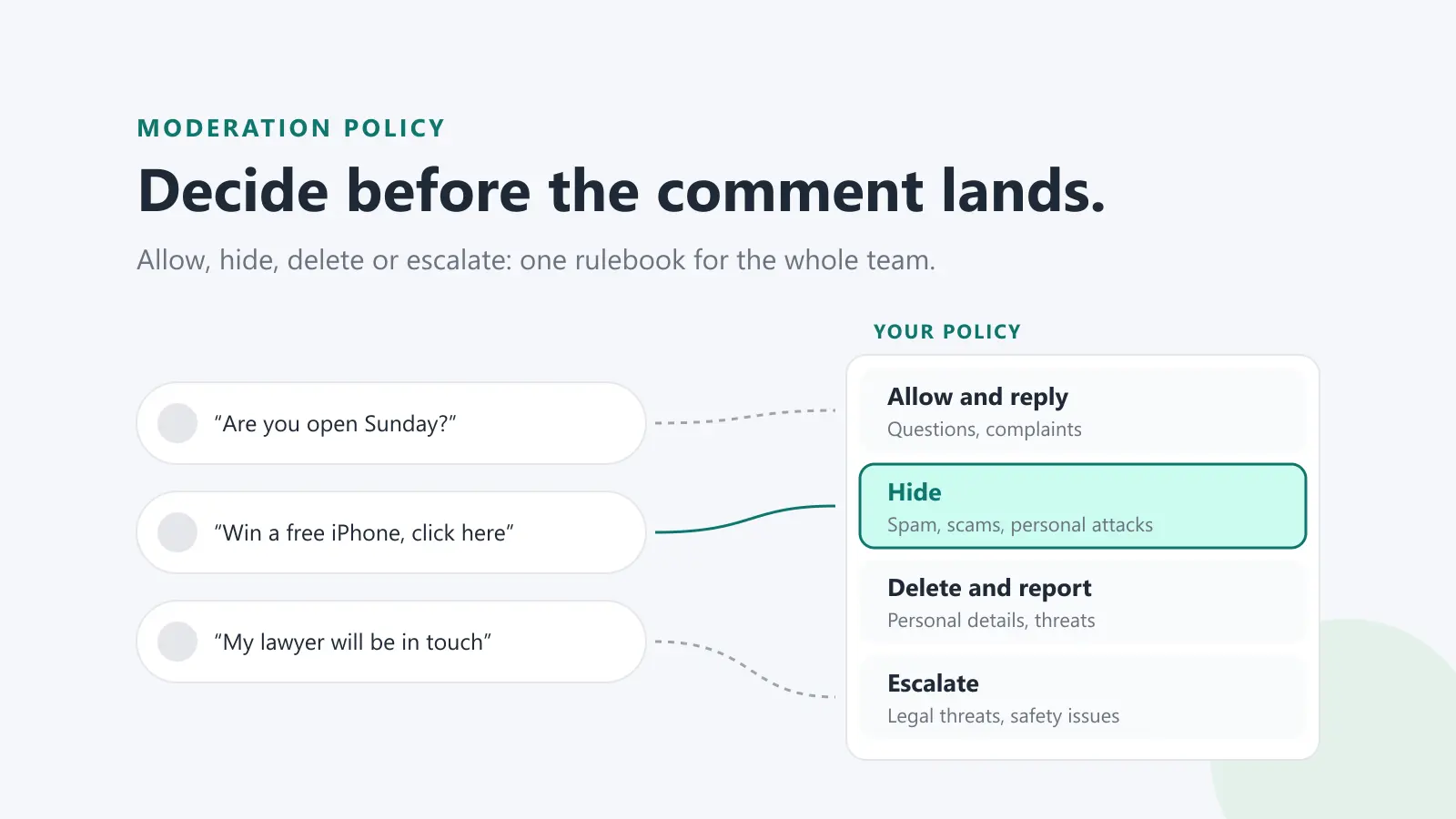
For most businesses, hiding is the best first move for spam and abuse. It's reversible, the person who wrote it generally won't notice, and it doesn't draw the "you deleted my comment" follow-up that a deletion can. Delete when the comment shouldn't exist at all, such as someone's personal details or a threat, and report it as well.
Hidden comments still count towards a post's total comment count, according to Instagram.
Google review reply templates
20 replies you can copy and edit, from a 5-star thank-you to a fair answer to a 1-star complaint. Free, by email.
We'll email the templates from support@dinopix.com.au, then about one email a month with new review guides and Dinopix product news. Unsubscribe in one click from any email. Privacy policy
How to delete a comment on Instagram
As of October 2026, Instagram's Help Centre gives these steps.
In the Instagram app (iPhone and Android)
- Tap Comments below the post, or tap any comment.
- Tap and hold the comment you want to delete.
- Tap Delete.
On a computer
- Hover your cursor over the comment you want to delete, then click Options.
- Click Delete.
Delete up to 25 comments at once
If a post has been flooded, Instagram lets you manage comments in bulk from the app:
- Tap Comments below your post.
- Tap Options at the top right, then tap Select multiple comments.
- Select the comments you want to manage.
- At the bottom, choose Hide comments, Delete comments or Block accounts.
Instagram says you can delete up to 25 comments at a time. The same screen has Comment controls, where you can turn off comments and manage filters.
One more detail from Instagram's help: if you delete a comment you wrote on a reel that was shared to Facebook, it's removed from both apps.
If a comment won't delete: Instagram says that if you keep getting an error, the comment may already have been deleted and you're seeing an old version of the page. You also can't delete other people's comments on a post that isn't yours.
How to hide a comment on Instagram
Hide one comment by hand
Instagram's Help Centre says manual hiding is done in the mobile app (iPhone or Android):
- Go to the comment you want to hide.
- Tap Hide under the comment.
You can only manually hide comments on your own posts.
See hidden comments and unhide them
- Go to the post. At the bottom of the comments, tap View hidden comments.
- Tap Unhide under the comment you want to restore.
It's worth checking this list now and then, because filters (below) can catch genuine comments by mistake.
Hide comments automatically: filters and Hidden Words
For a busy account, hiding comments one by one isn't realistic. Instagram has two filters that do most of the work, set from your profile in the app.
Hide unwanted comments
Instagram describes this as automatically hiding comments with common offensive words, phrases or emojis that are likely to be abusive, such as insults or personal attacks. It's on by default. To change how much it hides (as of October 2026):
- Tap your profile picture at the bottom right to go to your profile.
- Tap Menu at the top right.
- Below How others can interact with you, tap Comments.
- Below Types of comments, tap Hide unwanted comments.
- Choose None, Some or More.
Hidden Words: your own list
Hidden Words lets you add your own words, phrases, numbers or emojis. Instagram says matching comments are hidden on posts you share, and the list also applies to message requests.
- Tap your profile picture at the bottom right to go to your profile.
- Tap Menu at the top right.
- Below How others can interact with you, tap Hidden words.
- Tap Add words separated by commas... and enter your words, separated by commas.
Good candidates are scam phrases you keep seeing, slurs, and words used in abuse aimed at your staff. Keep the list tight: an over-eager filter can hide genuine complaints, and a customer whose complaint quietly disappears is not a customer you've dealt with.
Instagram says that when you turn on these settings, both new and existing comments are hidden, and if you turn them off, the hidden comments come back. The person whose comment is hidden isn't told.
Choose who can comment
By default, everyone can comment on a public account's posts and stories. To narrow it, go to Settings, then Comments under How others can interact with you. Instagram lets you allow comments from people you follow, your followers, or both, or turn commenting off for posts, reels and stories altogether.
For most businesses, limiting comments to followers is a heavy-handed default, because it shuts out new customers. It's more useful as a short-term measure during a pile-on.
Restrict, limit or block a problem account
When the problem is a person rather than a comment, use one of these.
Restrict someone
Restrict is the quietest option. According to Instagram, a restricted person's new comments on your posts are visible only to them. You can tap See comment, then Approve to make it public, or delete it. You won't get notifications for their future comments, and they won't see when you're online or have read their messages.
To restrict someone from a comment:
- Go to your post and tap Comments.
- Tap and hold the comment.
- Tap Restrict account (or Unrestrict account to undo it).
You can also restrict someone from their profile (tap Options at the top right, then Restrict), or from your settings under How others can interact with you, then Restricted.
Limit interactions during a pile-on
If a post goes viral for the wrong reasons, Instagram's Limit interactions tool hides new comments and chats from groups of accounts for a set period. You can limit accounts that don't follow you, recent followers (accounts that started following you in the last week), or everyone except your close friends. Limited accounts can still comment, but their comments stay hidden unless you approve them, and they stay hidden after you turn the tool off.
- Tap your profile picture at the bottom right, then tap Menu.
- Below How others can interact with you, tap Limit interactions.
- Choose What will be limited and Who will be limited, set a reminder, then tap Turn on.
Instagram says you can limit interactions for up to four weeks at a time and extend it.
Block someone from commenting
- Tap your profile picture at the bottom right, then tap Menu.
- Below How others can interact with you, tap Comments.
- Next to Block comments from, tap People.
- Enter their name, then tap Block.
They can still see your posts, and any new comments they leave are visible only to them. Delete their earlier comments separately, because blocking doesn't remove them.
Report what breaks the rules
For spam, hateful conduct or false information, report the comment: tap and hold it, tap Report, choose a reason and follow the prompts. Instagram says reports are anonymous (except for intellectual property reports), and that once you report a comment you won't see it any more, though that doesn't mean Instagram has removed it.
How to turn off comments on Instagram
On a post you've already shared
- Tap Options above your post (on a computer, click Options next to it).
- Select Turn off commenting. To undo it later, select Turn on commenting.
Before you share a post
On the screen where you add a caption or location, tap Advanced settings, then turn on Turn off commenting.
On a reel
Open the reel, tap Options at the bottom right, tap Manage, then tap Turn off commenting.
On stories
To turn off comments for all your stories: tap Add, then Story, tap Settings at the top right, tap Story, then below Commenting tap Allow comments and choose Off. For a single story, tap Options while editing it (or on the posted story) and tap Turn off commenting.
What turning off comments costs you
Instagram says turning off commenting hides the existing comments on that post, and turning it back on restores them. That's useful for a post that has become a magnet for abuse, a sensitive announcement, or a giveaway that has been overrun by spam bots.
As a habit, though, it has a price. Comments are where customers ask questions and where other people see that you answer them. A business that switches off comments on every post can look like it's avoiding its customers. Use filters, hiding and restricting for the everyday problems, and keep turning off comments for the posts that genuinely need it.
Live videos
Instagram lets you assign one moderator to a live broadcast (tap Options, then Add moderator). The moderator can report comments, remove viewers from the live, and turn off commenting for a specific account. After the live ends, you can review what the moderator did.
Reply in public, then invite a private conversation
Not every negative comment is a moderation problem. A customer who politely says your delivery was late is giving you a chance to look good in public. Hiding their comment while everything else stays up looks like burying criticism, and they can still see it, so they know they've been ignored.
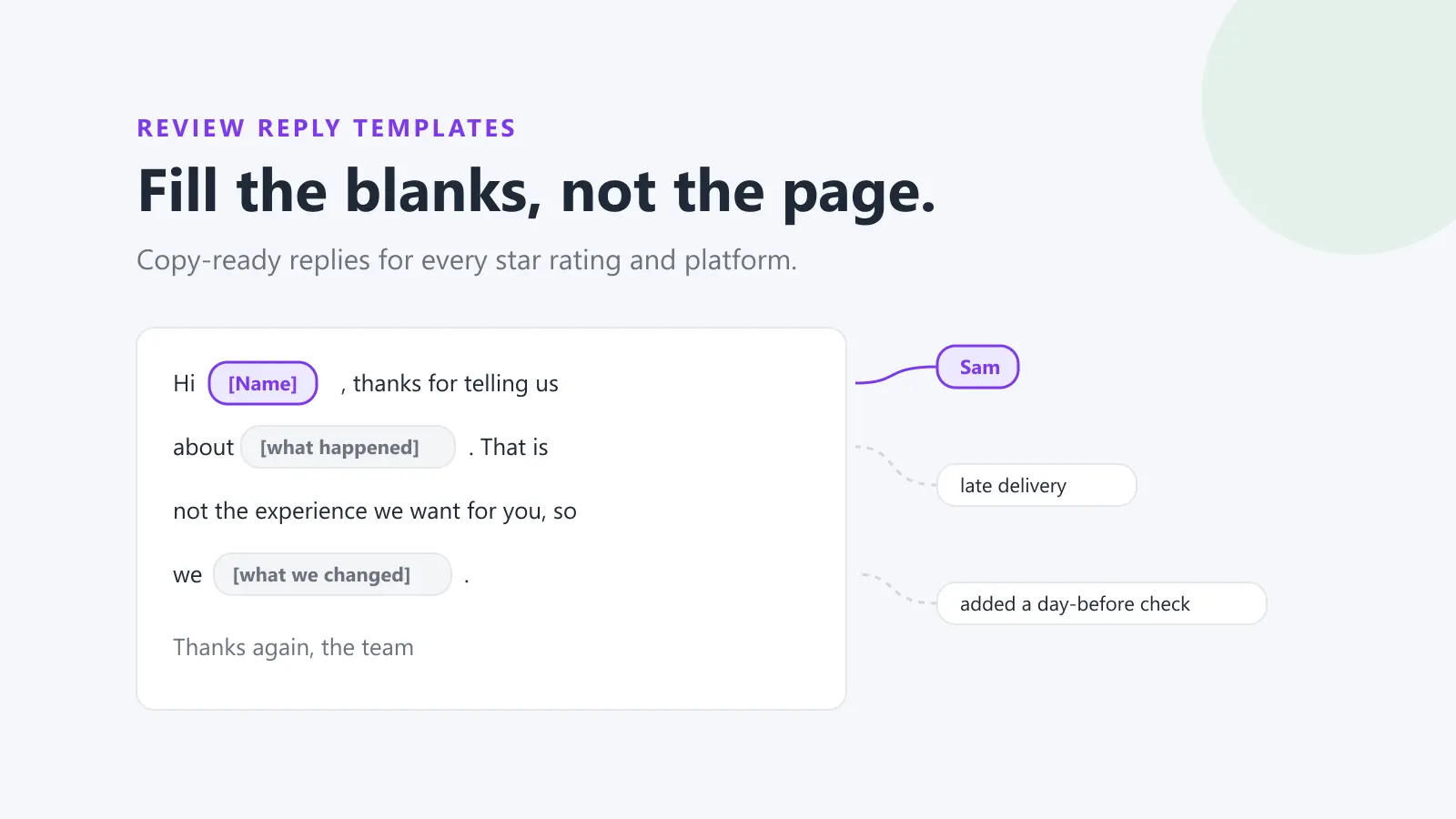
Reply on the post: acknowledge the problem, say what you're doing about it, and invite them to send you a direct message with their order details so you can sort it out. Keep personal details out of the public thread. Our guide on how to respond to negative reviews covers the wording, and most of it works for comments too.
Then make sure someone is actually watching your DMs, because that's where the conversation continues.
Comments on Instagram ads
Comments on ads can be easy to miss because they don't sit on your profile grid. Meta's help for Ads Manager says that, depending on the ad, you may see Manage Instagram comments for an ad, where you can hide or report comments. Meta also notes you can't manage comments on Instagram if the ad runs under your Facebook Page identity rather than an Instagram profile. Your Hidden Words and profanity filters are set at the profile level and, according to Meta, extend to ads from that profile.
Moderating several Instagram accounts as a team
If you run an account for each location, or manage Instagram for clients, the hard part isn't hiding a comment. It's noticing it on a reel from three weeks ago, on an account nobody has opened since Monday.
A few habits help:
- Set Hide unwanted comments and a Hidden Words list on every account, not just the main one.
- Agree who checks comments, how often, and who covers weekends.
- Decide in advance what gets hidden, what gets deleted, and what goes to a manager, so two staff members don't handle the same kind of comment in opposite ways.
Meta Business Suite's Inbox shows comments on your Facebook and Instagram posts in one place, where you can reply, filter by platform and assign conversations, according to Meta's help. It only shows comments for accounts connected to Business Suite.
Dinopix's Instagram comment moderation is built for the same problem across many accounts. Comments from every Instagram account you connect, on posts and reels, land in one list, where your team can reply or hide and unhide spam and abuse. When a customer sends you a direct message, it arrives in the same Inbox as your reviews and other comments. Dinopix doesn't delete comments and doesn't send private replies: deleting is still done in the Instagram app with the steps above, and you invite people to message you in your public reply. If you also manage Facebook Pages, see how to delete or hide comments on a Facebook business Page.
Frequently Asked Questions
Does someone know when you hide their Instagram comment?
Instagram's Help Centre says a manually hidden comment is visible only to you and the person who wrote it, and the commenter won't be able to see that it's been hidden. Comments hidden by filters also aren't flagged to the person who wrote them.
Can you delete someone else's comment on Instagram?
Only on your own posts. Instagram says that on your own posts you can delete anyone's comments, and on other people's posts you can only delete comments you wrote. If someone leaves an abusive comment on another account's post, report it instead.
How do you delete multiple comments on Instagram at once?
In the app, tap Comments below your post, tap Options at the top right, then Select multiple comments. Select the comments and choose Delete comments (or hide them, or block the accounts). Instagram says you can delete up to 25 comments at a time.
What happens to existing comments when you turn off commenting?
Instagram says turning off commenting hides the comments already on the post. If you turn commenting back on, the earlier comments are restored and people can comment again.
Can you hide comments on Instagram from a computer?
Instagram's Help Centre says manual hiding is done in the Instagram app on iPhone or Android. On a computer you can delete comments on your posts and turn commenting off or on.
What's the difference between restricting and blocking someone on Instagram?
Restricting is quieter: the person can still comment, but their new comments are only visible to them unless you approve them, and you stop getting notifications about them. Blocking someone from commenting also keeps their new comments visible only to them; a full block goes further. Neither removes comments they've already left, so delete those separately if needed.
Keep every Instagram account's comments under control
If you look after more than one Instagram account, or Instagram and Facebook together, Dinopix puts every comment in one list so spam is hidden and questions are answered before they sit for days. See how it handles Instagram comments, and keep deleting for the rare comment that needs it.
Sources
- Instagram Help Centre, Delete a comment on Instagram
- Instagram Help Centre, Manage multiple comments on your Instagram posts
- Instagram Help Centre, Why you can't delete a comment on Instagram
- Instagram Help Centre, Hide comments or message requests that you don't want to see on Instagram
- Instagram Help Centre, Turn comments on or off for Instagram posts
- Instagram Help Centre, Who can like or comment on your Instagram content
- Instagram Help Centre, Change audience settings or turn off comments on Instagram stories
- Instagram Help Centre, Manage reels on Instagram
- Instagram Help Centre, Restrict or unrestrict someone on Instagram
- Instagram Help Centre, Temporarily limit people from interacting with you on Instagram
- Instagram Help Centre, Block or unblock someone from commenting on your Instagram photos and videos
- Instagram Help Centre, Report a comment on Instagram
- Instagram Help Centre, Assign a moderator to your live broadcast on Instagram
- Meta Business Help Centre, Manage comments on your ads in Meta Ads Manager
- Meta Business Help Centre, About Inbox in Meta Business Suite
Google review reply templates
20 replies you can copy and edit, from a 5-star thank-you to a fair answer to a 1-star complaint. Free, by email.
We'll email the templates from support@dinopix.com.au, then about one email a month with new review guides and Dinopix product news. Unsubscribe in one click from any email. Privacy policy