Can You Turn Off Comments on a Facebook Post? What Business Pages Can Do

Can you turn off comments on a Facebook post? What profiles, groups and business Pages can switch off, and what Pages should do instead when a post goes wrong.
You post a sale announcement on your business Page. By lunchtime the comments are a pile-on: a customer annoyed about last month's delivery, three people arguing with each other, two scam links and someone tagging their friends to have a go. The obvious question is whether you can just switch the comments off.
The short answer depends on where the post lives. Facebook gives personal profiles a "who can comment" control, gives group admins ways to slow or approve comments, and gives business Pages a different set of tools built around hiding, filtering and blocking. This guide covers each one as of October 2026, with Meta's own instructions, and explains what a Page can do instead when a post gets out of hand.
The short answer
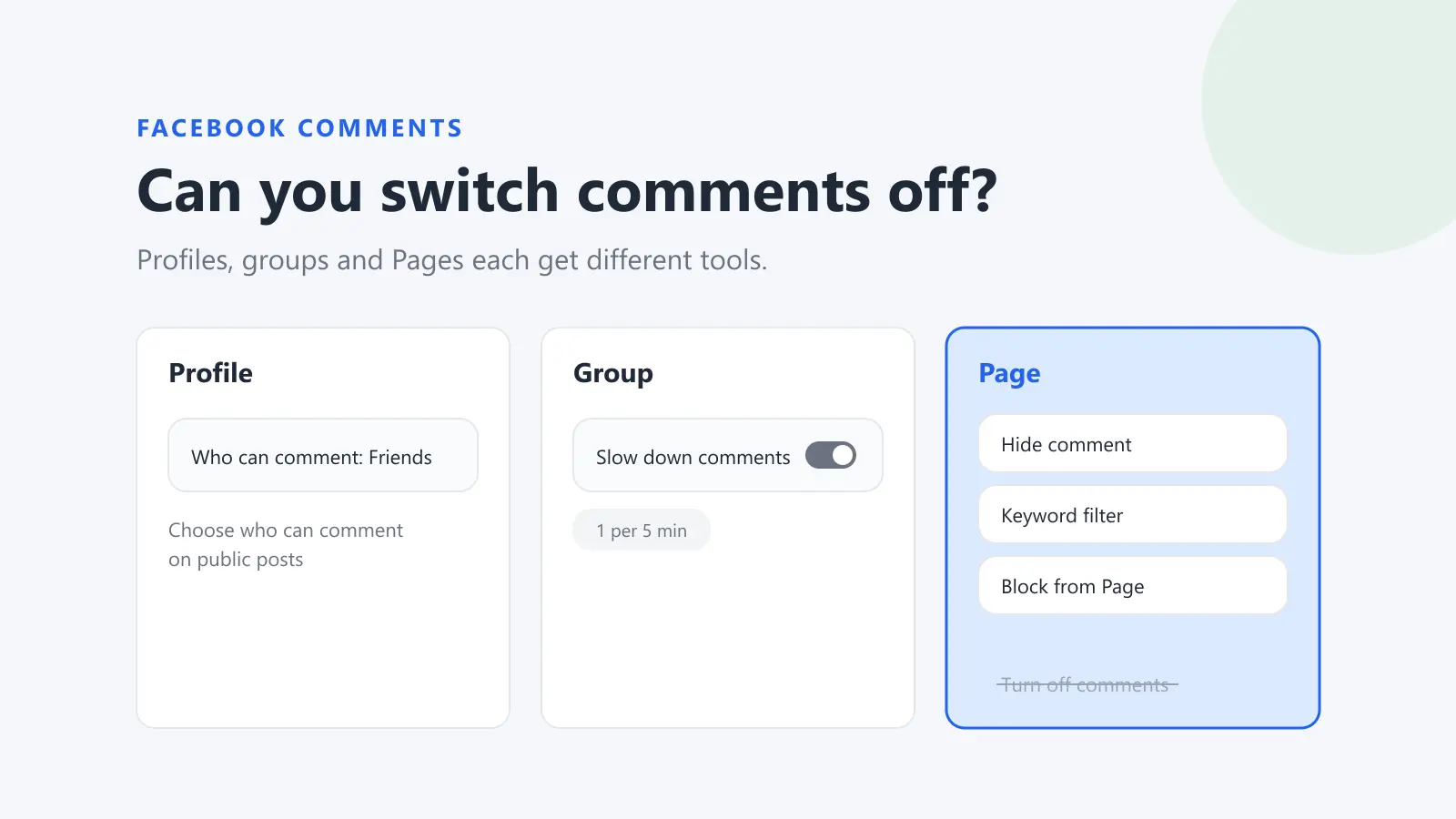
- Personal profile: yes, you can limit who can comment on your public posts, for all of them or one post at a time.
- Facebook group you manage: you can slow down comments on a post, require approval for posts and first-time participants, and limit how often a particular member comments.
- Business Page: Meta's Page moderation help doesn't describe a single switch that turns off comments on one post. What it describes is a set of tools: hide or delete individual comments, block keywords and profanity automatically, restrict by country and age, review posts and tags, and block people from your Page.
For most businesses that's no bad thing. A Page that hides spam and abuse, answers genuine complaints and keeps the conversation open looks better than one that goes silent whenever someone is unhappy.
Google review reply templates
20 replies you can copy and edit, from a 5-star thank-you to a fair answer to a 1-star complaint. Free, by email.
We'll email the templates from support@dinopix.com.au, then about one email a month with new review guides and Dinopix product news. Unsubscribe in one click from any email. Privacy policy
Personal profiles: choose who can comment
Facebook's Help Centre says that, by default, everyone can comment on your public posts, even people who don't follow you. You can change that for all your public posts or for one post.
For all your public posts (on a computer)
- Click your profile picture in the top right of Facebook.
- Select Settings and privacy, then click Settings.
- In the left column, below Audience and visibility, click Followers and public content.
- In Who can comment on your public posts?, choose Public, Friends or Friends of friends.
For one public post
- Go to the public post on your profile.
- Click Options at the top right of the post.
- Click Who can comment on your post?
- Choose who can comment: Public, Friends and established followers (your friends and people who have followed you for more than 24 hours), Friends, or Profiles and Pages you mention.
- Click Done.
Facebook says that anyone outside the audience you choose won't see Comment below the post, and will see that you've limited who can comment. The setting for one post doesn't change your other posts. For reels, Facebook notes that changing the comment audience isn't available to everyone yet, and suggests trying the Facebook app on iPhone or Android if you can't find it.
If you post for your business from a personal profile, this is the closest thing Facebook offers to turning comments off: choosing Profiles and Pages you mention narrows commenting to the people and Pages you tag.
Facebook groups: slow down, approve or limit
Group admins and moderators get different controls. As of October 2026, Facebook's Help Centre describes these.
Slow down comments on a post
Facebook says this feature isn't available to all groups. When comments are slowed down on a post, each person can only post one comment every five minutes.
- Go to facebook.com/groups and select your group.
- Go to the post.
- Click Options, then select Slow down comments.
To undo it, repeat the steps and select Stop slowing comments. Admins and moderators can still comment while comments are slowed.
Require approval
Group settings include Participant approval (approve members and visitors before they post or comment for the first time) and Post approval (approve posts before they're published). Both are under Group settings, below Participation and Manage discussion respectively.
Limit one member
If one person is the problem, admins can temporarily limit how many posts a member can publish per day and how many comments they can publish per hour: go to Members, find the person, click Options, then Limit activity. Facebook notes this feature isn't available to all groups either.
Business Pages: what you can and can't switch off
Meta's Business Help Centre article on comment moderation for Pages lists what a Page can manage: keyword filters, the profanity filter, comment ranking, country and age restrictions, reviewing posts and tags, and blocking. You need Facebook access to the Page to use them; people with task access can do some of this from Meta Business Suite instead.
What the article doesn't include is a per-post "turn off comments" option for Pages. So for a Page, the practical question isn't "how do I switch comments off" but "how do I stop the bad ones without hiding the good ones". These are the tools for that.
Hide or delete individual comments
Hiding is the tool you'll use most. Facebook's Help Centre says a hidden comment stays visible to the person who wrote it and their friends, and is hidden from everyone else, along with its replies. You can unhide it later. To hide one, go to the post, hover over Options next to the comment and click Hide comment.
Deleting removes the comment from the post. Keep it for comments that shouldn't exist at all, such as someone's personal details or a threat, and report those as well.
Our guide on how to delete or hide comments on your Facebook business Page has the full steps for a computer and the app.
Block keywords and profanity automatically
Both filters live in the same place (as of October 2026):
- Click your profile photo in the top right, click See all profiles, then select your Page.
- Click your Page photo at the top right, then Settings and privacy, then Settings.
- Click Followers and public content.
From there:
- Hide comments containing certain words from your Page lets you add words, phrases or emoji. Facebook says you can choose up to 1,000 keywords, and it automatically hides common variations (misspellings, plurals, abbreviations, and words written with numbers or symbols) without counting them towards the limit.
- Hide posts and comments with profanity turns on Facebook's profanity filter, which hides the words and phrases most commonly reported as offensive by the community. Hidden comments stay visible to the people who wrote them and their friends.
If a post has attracted a specific kind of abuse, adding a handful of keywords for the next few days is often enough to take the heat out of it without touching anyone's genuine comment.
Country and age restrictions
In the same Followers and public content settings, Country restrictions and Age restrictions limit who can see your Page. They're blunt tools, useful if your business only serves one country or sells age-restricted products, not a fix for a single bad post.
Block repeat offenders
Facebook says a profile or Page you block from your Page can no longer see what you post there, tag your Page, invite it to events or groups, start a conversation with it, or find it by searching, and is removed as a follower if it was following you. The block only applies to your Page. To block someone, go to your Page's Settings and privacy, then Settings, then Blocking, and add them under Block profiles and Pages.
Comments on ads and boosted posts
Ad comments are easy to miss because they don't always sit on your Page's timeline. Meta's Ads Manager help says that, depending on the ad, you can open Manage Facebook comments for it (in Ads Manager, click Edit below the ad name, then the ... next to the ad, then More options). The pop-up lets you like, reply to, hide or report comments. Meta notes the ad must be published, not a draft.
Your Page's keyword and profanity filters also help here. As covered in our Facebook comments guide, Meta says those filters are set at the Page level and extend to ads from the Page.
If an ad's comments are going badly, pausing the ad stops new people from seeing it, which slows the comments down far more effectively than any filter.
Better than switching comments off
When a post goes wrong, these usually work better than silence.
Hide the junk, keep the conversation. Spam links, slurs and attacks on your staff can go. Genuine complaints stay, with a reply.
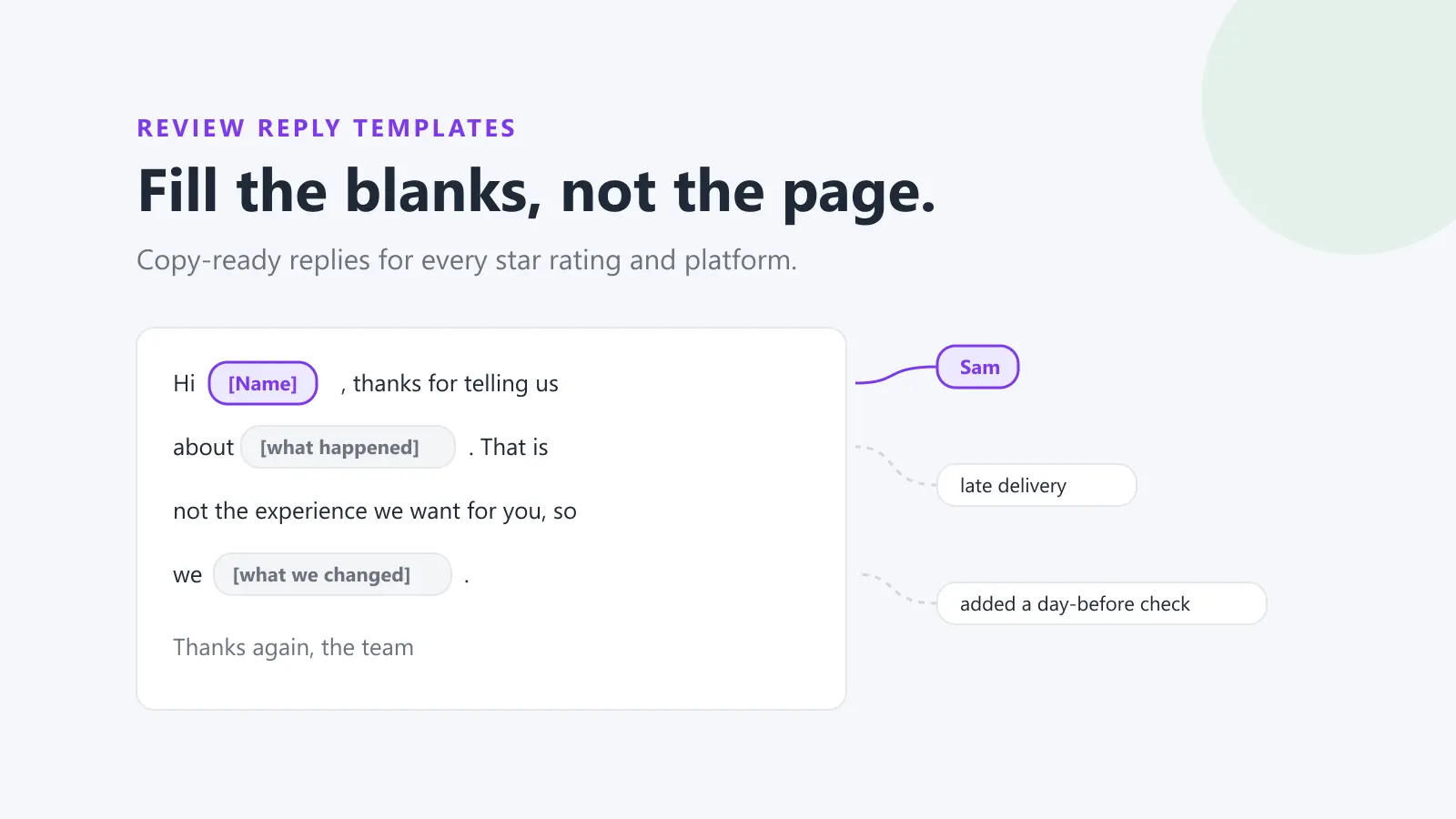
Reply once, clearly. If many comments are about the same problem (a delayed order, a price error, a closure), one clear reply from your Page, repeated briefly under the main threads, saves you writing a different answer 40 times and keeps your message consistent.
Post a statement and pin it. If the issue is bigger than one post, publish a short update and pin it. Facebook's Help Centre says Pages can pin posts to the Featured section at the top of the Page: open the post's Options menu and click Pin post.
Invite people to message you. Ask anyone with a specific problem to send you a message with their details, so personal information stays out of the public thread. Then make sure someone is watching the Page's inbox.
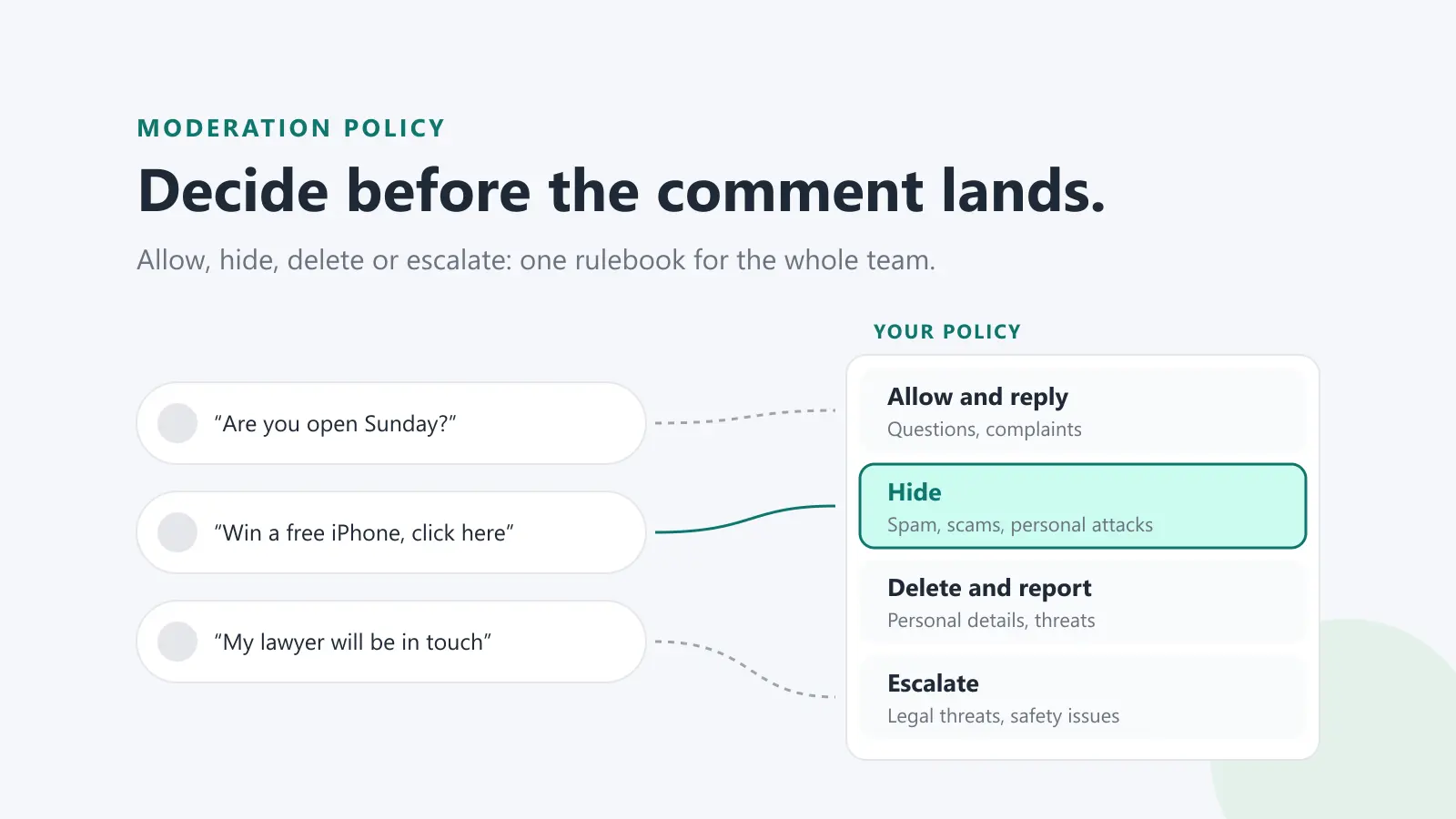
Set the rules in advance. A short, written moderation policy tells your team what to hide, what to delete and what to escalate, so nobody has to decide on the spot at 9pm. Our social media moderation policy template is a starting point.
When turning comments off backfires
Even where you can turn comments off, think about who's watching:
- The complainer still exists. They'll post on your Page's reviews, on Google, or on their own profile, where you can't reply at all.
- Everyone else sees the silence. A post with comments limited or a stream of obviously deleted replies reads as "this business doesn't want to hear it".
- You lose the good comments too. Questions from new customers, tags from happy ones, and the social proof that comes from a busy, friendly thread all go with the bad ones.
Limiting comments makes sense for a short window: a sensitive announcement, a post that has gone viral for the wrong reasons, or a giveaway overrun by bots. As a default, it costs more than it saves. For how to word replies to angry customers, see our guide on how to respond to negative reviews; most of it works for comments too.
Managing comments across several Pages
The hard part of comment moderation isn't any one setting. It's noticing the comment that matters, on a post from three weeks ago, on a Page for a location nobody has checked since Monday.
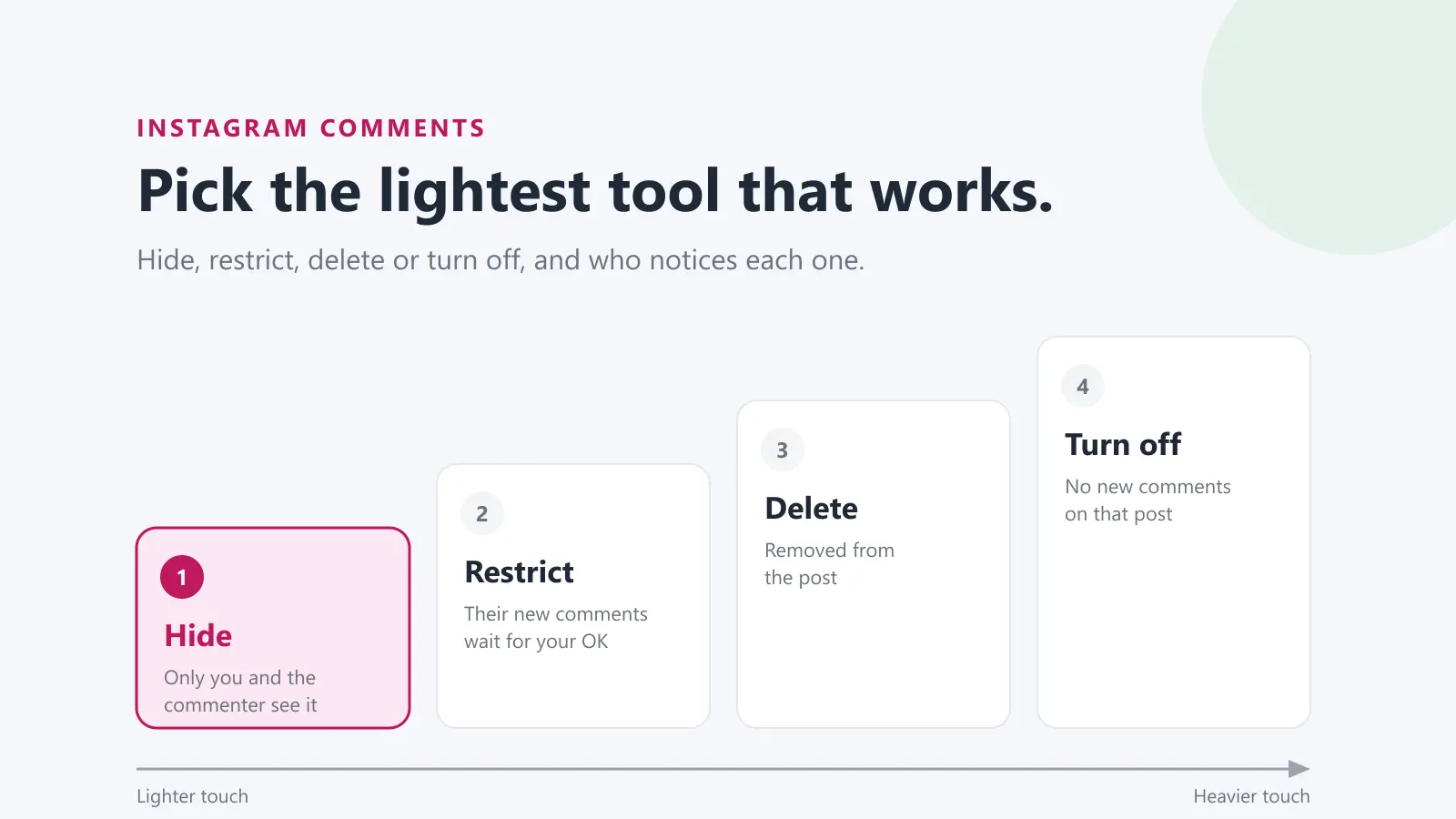
Dinopix's Facebook comment management puts comments from every Page you connect, including comments on ads and boosted posts, into one list with the unanswered ones first. Your team can reply, or hide and unhide spam and abuse, without logging in to each Page. Dinopix doesn't delete customers' comments, and it doesn't send private messages: you invite people to message you in your public reply. If you manage Instagram too, see how to delete, hide or turn off comments on Instagram, where turning comments off on a post is an option.
Frequently Asked Questions
Can a Facebook Page turn off comments on a post?
Meta's help for Pages doesn't describe a per-post switch to turn comments off. Pages can hide or delete individual comments, block keywords and profanity automatically, set country and age restrictions, and block people from the Page. Personal profiles can limit who can comment on their public posts, and some group admins can slow down comments on a post.
How do I limit who can comment on my Facebook post?
On a personal profile, open the public post, click Options, then Who can comment on your post?, and choose Public, Friends and established followers, Friends or Profiles and Pages you mention. To change it for all your public posts, go to Settings, then Followers and public content, then Who can comment on your public posts?
What happens when you hide a comment on a Facebook Page?
Facebook says the comment stays visible to the person who wrote it and their friends, and is hidden from everyone else, along with its replies. You can unhide it later from the Hidden by this Page view in the post's comments.
Can I stop comments on my Facebook ads?
Meta's Ads Manager help describes managing ad comments (liking, replying, hiding and reporting) rather than turning them off. Your Page's keyword and profanity filters extend to ads from the Page, and pausing the ad stops it reaching new people.
How do group admins stop comments on a post?
Facebook says admins and moderators of some groups can slow down comments on a post, so each person can comment only once every five minutes. Admins can also require post and participant approval, and temporarily limit how often a member can post or comment.
Is it bad to turn off comments on Facebook?
For a short time on a specific post, it can be sensible. As a habit, it tends to backfire: genuine complaints move somewhere you can't reply, other customers see a business avoiding questions, and you lose the positive comments too. Hiding spam and abuse while replying to everyone else usually works better.
Keep every Page's comments under control
If you look after several Facebook Pages, or Facebook and Instagram together, Dinopix brings every comment into one inbox, so spam is hidden and real questions get answered before they sit for days. Your team replies and moderates from one place, and Facebook's own settings handle the filters.
Sources
- Facebook Help Centre, Choose who can comment on your public Facebook posts
- Facebook Help Centre, Who can like or comment on things that I post on Facebook?
- Facebook Help Centre, Slow down comments on a post in a Facebook group that you manage
- Facebook Help Centre, Manage posts for your Facebook group
- Facebook Help Centre, Limit someone's activity in a Facebook group that you admin
- Facebook Help Centre, Hide a comment from a post on your Facebook Page
- Facebook Help Centre, Delete a comment from a post on your Facebook Page
- Facebook Help Centre, Block certain words from appearing in comments on your Facebook Page
- Facebook Help Centre, Turn the profanity filter on and off for your Facebook Page
- Facebook Help Centre, Block or unblock profiles from your Facebook Page
- Facebook Help Centre, Pin items to the top of your Facebook Page
- Meta Business Help Centre, Manage comment moderation for Facebook Pages
- Meta Business Help Centre, Manage comments on your ads in Meta Ads Manager
Google review reply templates
20 replies you can copy and edit, from a 5-star thank-you to a fair answer to a 1-star complaint. Free, by email.
We'll email the templates from support@dinopix.com.au, then about one email a month with new review guides and Dinopix product news. Unsubscribe in one click from any email. Privacy policy