How to Set Up Review Alert Notifications Setup for Complete Online Reputation Management

Learn how to set up review alert notifications effectively to ensure you never miss important customer feedback. Follow our step-by-step guide for optimal results.
Managing your online reputation requires staying ahead of every customer review, but manually checking multiple platforms daily isn't sustainable. A proper review alert notifications setup ensures you never miss a customer's feedback, whether it's praise worth celebrating or criticism requiring immediate attention. This comprehensive guide will help you establish robust alert systems that provide complete visibility over your online reputation across all major review platforms.
Understanding the Importance of Automated Review Monitoring
In today's digital landscape, reviews appear across dozens of platforms at unpredictable times. A single negative review left unaddressed for days can escalate into a reputation crisis, while positive reviews present immediate opportunities for engagement and relationship building. Manual monitoring simply can't keep pace with the volume and timing requirements of effective reputation management.
Professional review alert notifications setup serves multiple critical functions: enabling rapid response to negative feedback, facilitating timely appreciation of positive reviews, providing data for reputation trend analysis, and ensuring compliance with customer service standards. The key is creating a system that's both comprehensive and manageable.
Google Business Profile Alert Configuration
Setting Up Push Notifications via Google Maps App
Google Business Profile offers the most immediate notification method through the Google Maps mobile application. To enable these instant alerts, download the Google Maps app and sign in with your business account credentials. Navigate to your business profile, access the Settings menu, and locate the Notifications section.
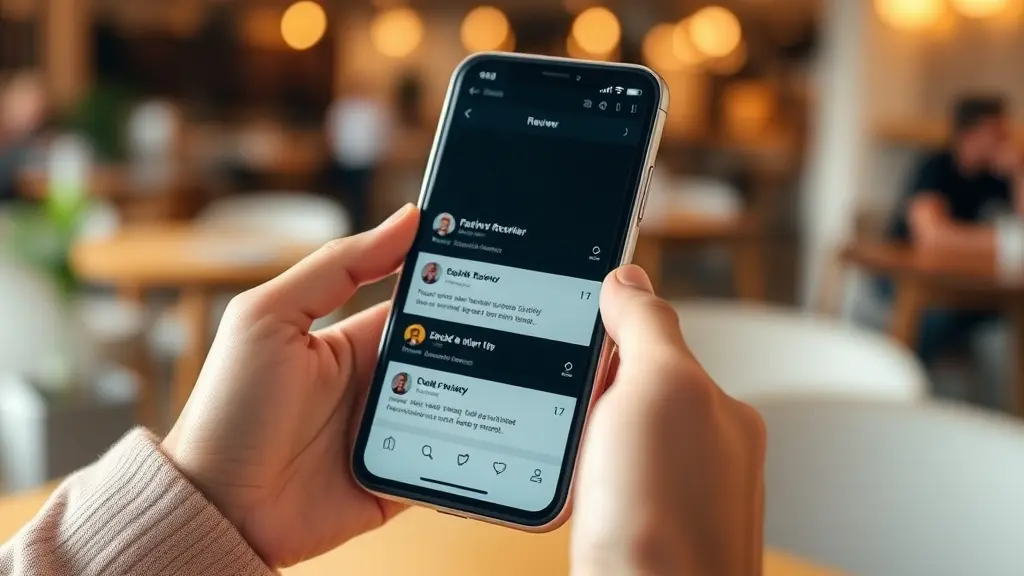
Within Notifications, toggle on the Reviews option to receive push notifications directly to your mobile device whenever new reviews are posted. This method provides the fastest alert delivery, often notifying you within minutes of a new review's publication. The immediacy makes it ideal for businesses prioritizing rapid response times.
Configuring Email Notifications for Documentation
While push notifications excel in speed, email notifications provide better documentation and team coordination capabilities. Access your Google Business Profile dashboard through a web browser, navigate to Settings, and locate the Email Notifications section. Toggle on Reviews to receive email alerts for new reviews.
Email notifications arrive less immediately than push notifications but offer several advantages: they create an automatic record of review activity, can be easily forwarded to team members, and integrate with most email management systems. Consider enabling both push and email notifications for comprehensive coverage.
Advanced Review Alert Notifications Setup with Zapier
Automating Low-Rating Alert Workflows
Critical reviews require immediate attention, and Zapier enables sophisticated filtering that prioritizes urgent situations. Create a Zap that monitors your Google Business Profile for new reviews, then add a Filter step that only continues the workflow for reviews with 1-3 star ratings.
Configure the action to send immediate email alerts to your customer service team, management, or designated reputation managers. Include the review content, rating, reviewer information, and direct links to respond. This targeted approach ensures your team focuses energy on reviews requiring immediate intervention while maintaining awareness of overall review activity.
Creating Multi-Platform Alert Workflows
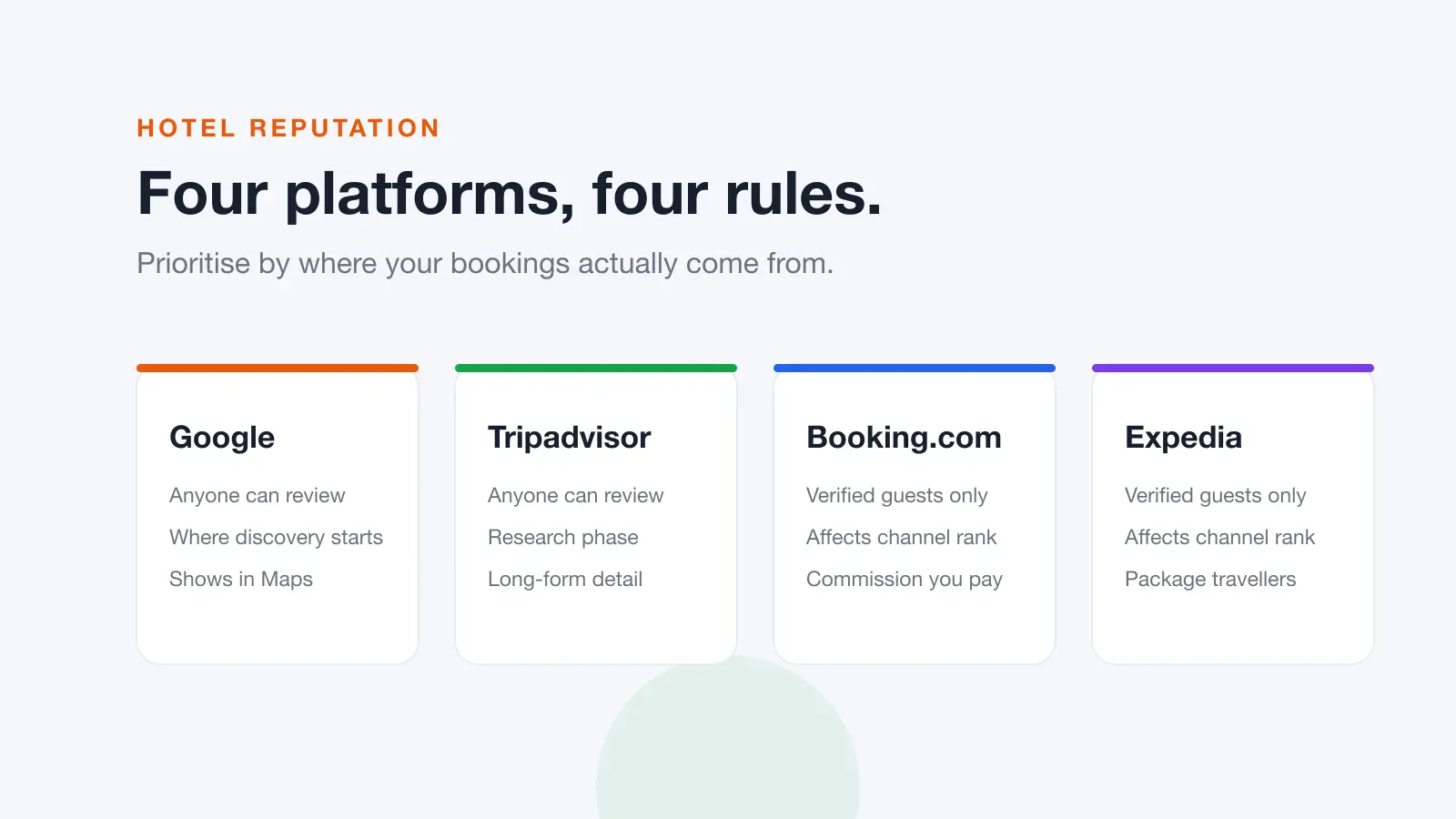
Zapier's strength lies in connecting multiple platforms within single workflows. Create Zaps for each major review platform your business appears on: Yelp, Facebook, TripAdvisor, industry-specific sites, and others. Configure consistent alert formats and recipient lists to maintain workflow efficiency across all platforms.
Implementing Third-Party Review Monitoring Solutions
Benefits of Dedicated Monitoring Tools
While platform-native notifications serve basic needs, dedicated third-party review monitoring tools offer superior reliability and functionality. These systems typically check for new reviews every few minutes, bypassing the inconsistency issues sometimes experienced with Google's notification system.
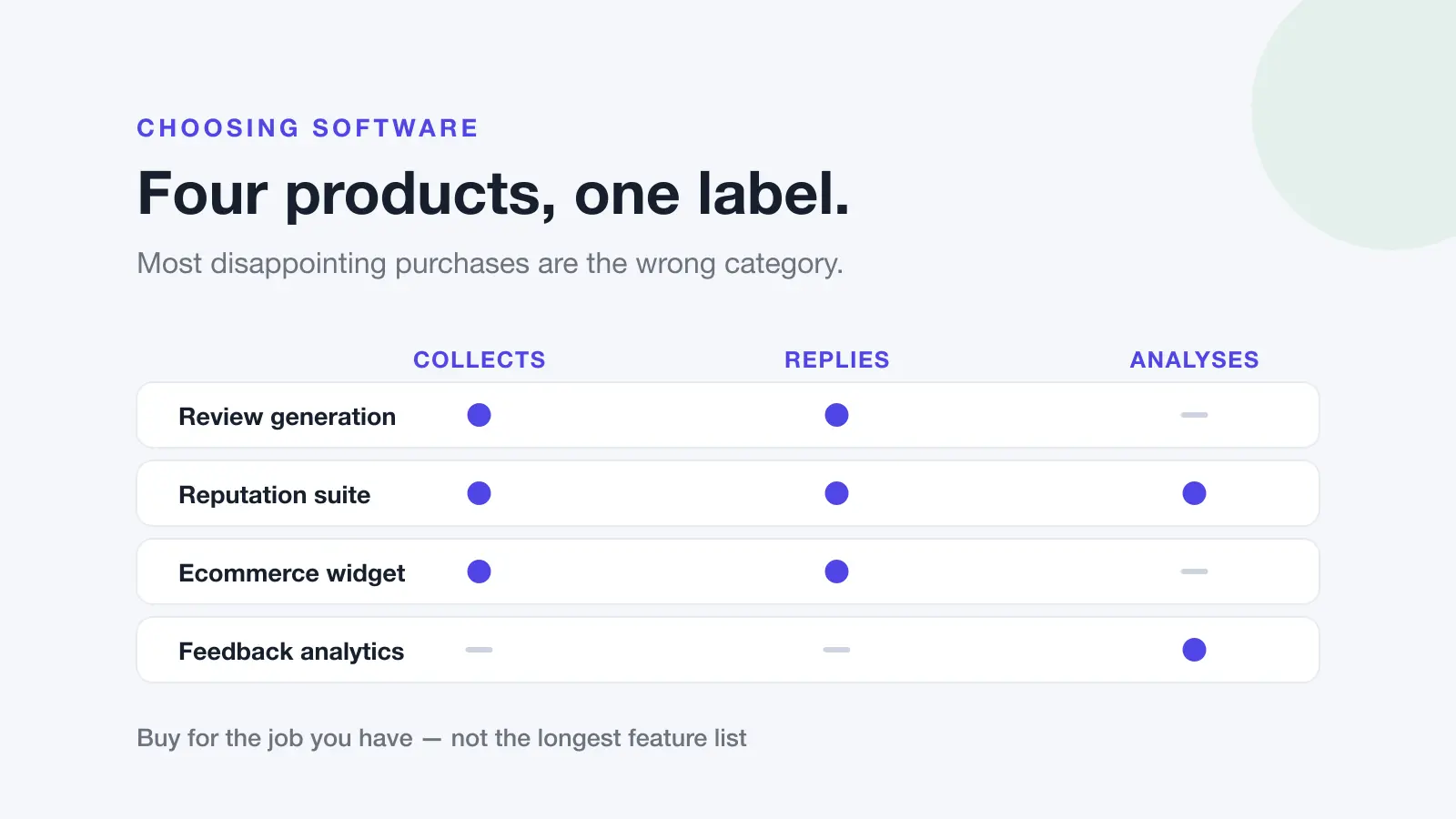
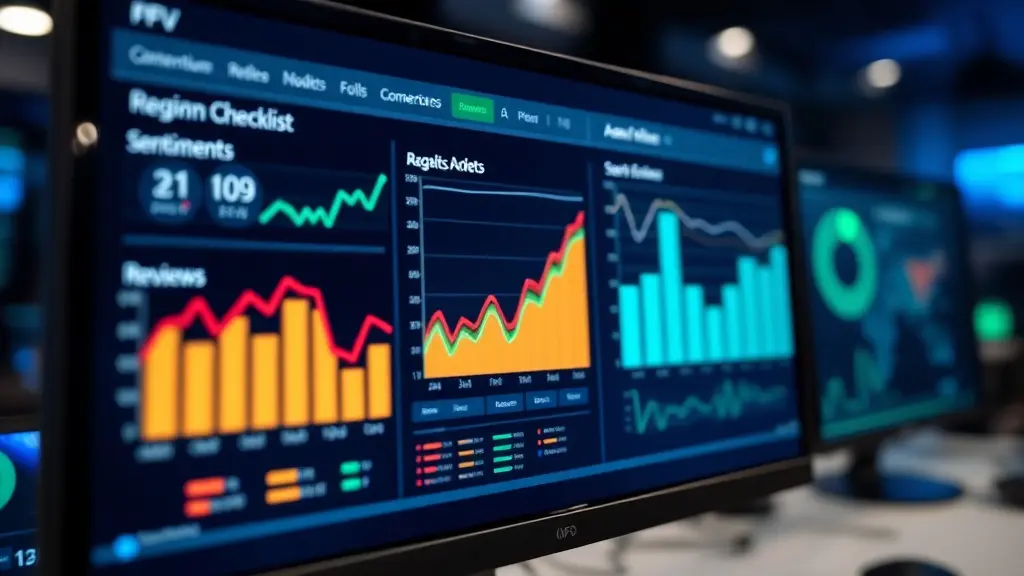
Professional monitoring tools provide additional features like sentiment analysis, suggested response templates, competitor monitoring, and comprehensive reporting. They aggregate reviews from multiple platforms into single dashboards, streamlining your review alert notifications setup and response workflows.
Key Features to Evaluate
When selecting third-party monitoring tools, prioritize reliable alert delivery, comprehensive platform coverage, response management capabilities, and integration options. Look for tools that offer multiple notification methods, customizable alert criteria, and team collaboration features. The investment in professional tools often pays for itself through improved response times and workflow efficiency.
Establishing Effective Alert Management Workflows
Creating Response Protocols
Effective review alert notifications setup extends beyond receiving alerts to acting on them consistently. Develop clear protocols for different review types: immediate response procedures for negative reviews, appreciation workflows for positive feedback, and escalation paths for complex situations.
Define response timeframes, assign team responsibilities, and create template responses for common situations. Document these protocols clearly so team members can respond appropriately even when primary reputation managers are unavailable.
Monthly Alert System Reviews
Establish a monthly cadence for reviewing your alert system's performance. Analyze metrics like alert delivery reliability, response times, and team engagement rates. Identify and fix noisy alerts that create unnecessary notifications, and document action items for system improvements.
Regular reviews ensure your system evolves with your business needs and maintains effectiveness over time. Track which platforms generate the most reviews, which alert methods work best for your team, and where workflow improvements could increase efficiency.
Optimizing Alert Frequency and Content
Balancing Immediacy with Productivity
While immediate alerts seem ideal, too many notifications can overwhelm teams and reduce response quality. Configure alerts to match your business's actual response capacity and customer expectations. High-volume businesses might batch alerts hourly during business hours, while service-focused businesses might require immediate notifications.
Customize alert content to include essential information without overwhelming recipients. Include review rating, platform, snippet of review text, and direct response link. Avoid lengthy notifications that delay action or create confusion during busy periods.
Troubleshooting Common Alert Setup Issues
Addressing Notification Delivery Problems
Common issues include missed notifications due to email filtering, mobile app notification settings, or platform technical problems. Create redundancy by using multiple alert methods and regularly test your system's functionality. Maintain backup monitoring procedures for critical platforms.
Document troubleshooting steps for common problems and ensure multiple team members understand the alert system's operation. This preparation prevents gaps in monitoring when technical issues arise.
FAQ
How quickly should review alerts be delivered?
Ideally, review alerts should arrive within 15-30 minutes of publication for critical platforms like Google Business Profile. However, acceptable timing depends on your business type and customer expectations. Service businesses typically need faster alerts than product-based companies.
Should I set up alerts for positive reviews too?
Yes, positive review alerts are essential for timely appreciation and relationship building. Many businesses focus only on negative reviews but miss opportunities to strengthen customer relationships and encourage additional positive feedback through prompt responses to favorable reviews.
How many team members should receive review alerts?
Include 2-3 key team members in review alerts to ensure coverage without creating notification fatigue. Typically include a primary reputation manager, a backup responder, and a supervisor or manager who can handle escalations or complex situations.
What should I do if alerts stop working?
First, check platform notification settings and email filters. Test the system by having someone leave a test review (if possible) or contact platform support. Maintain backup monitoring methods and document troubleshooting procedures to minimize response delays.
Can I customize alerts for different types of reviews?
Most advanced systems allow customization based on rating, keywords, or platforms. Set up different alert types for negative reviews (immediate, high priority), positive reviews (standard timing), and specific keywords that might indicate urgent issues.
How often should I review and update my alert settings?
Review alert settings monthly to ensure they match your current business needs and team structure. Update notification lists when team members change, adjust timing based on review volume patterns, and optimize based on response performance metrics.
Ready to streamline your review monitoring with professional-grade alert systems? Dinopix Reviews offers comprehensive review alert notifications setup with advanced filtering, multi-platform monitoring, and AI-powered response suggestions. Our platform ensures you never miss important customer feedback while maintaining efficient workflows that scale with your business growth.